Send a form to a client by email and track the response
Chasing a client for information usually means an email, a reply with half the answers, and a follow-up. With Formaliq you email your client a form, they fill it out in their browser, and you can see at a glance whether they've opened it or finished it. Their answers land in one place, ready to generate documents from.
The example follows a fictional firm, Harbor & Lane Law, sending a new business client intake form to Dana Ortiz of Bayview Dental Group.
What you'll build
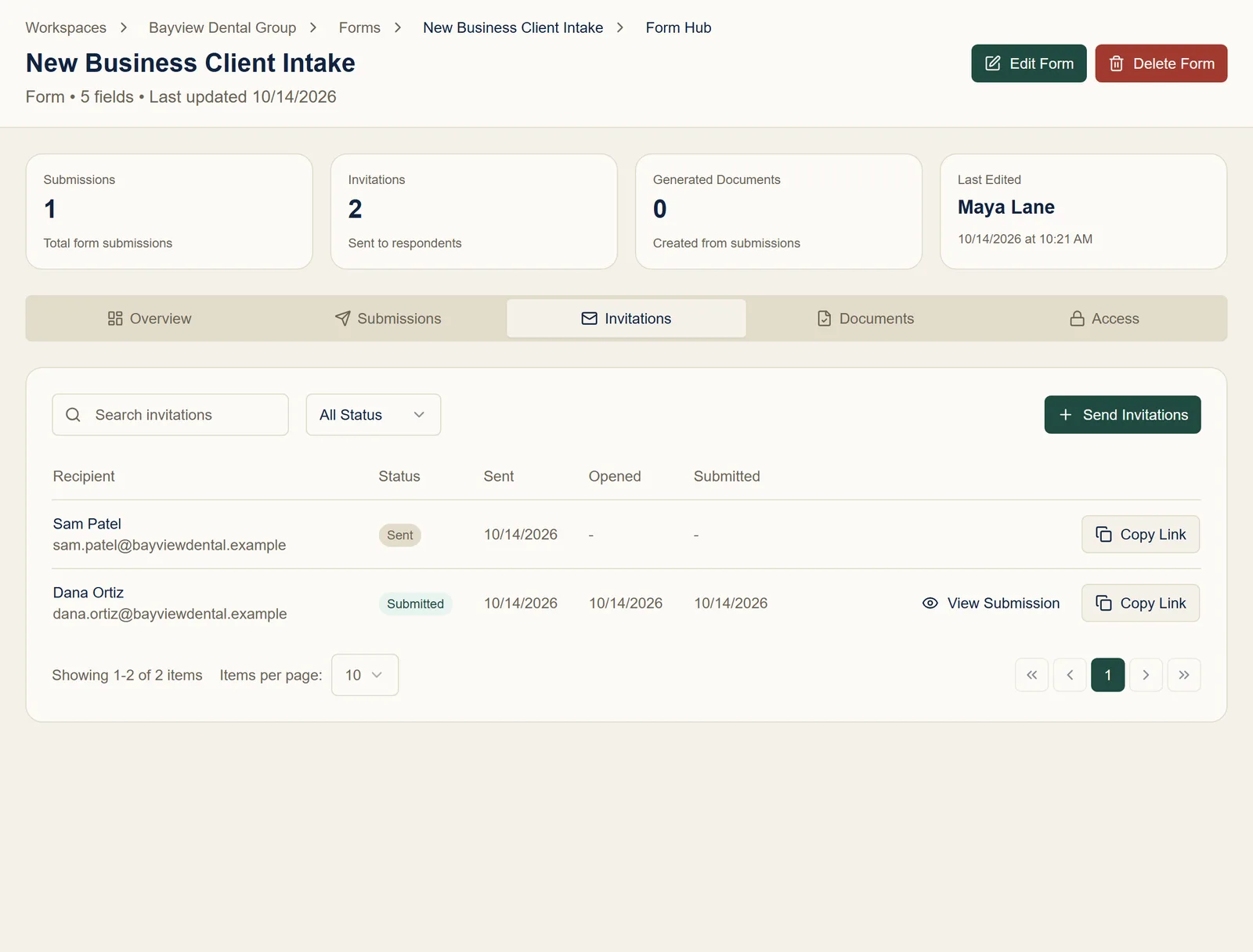
An emailed form invitation, and a tracking list showing who has opened and submitted it:
Time needed: about 5 minutes, once you have a form.
Before you start
- A form to send. If you don't have one yet, build it from a document you already use: see Turn a Word document into a fillable form.
- Your client's email address. They don't need a Formaliq account.
Step 1: Open the form and click Send Invitations
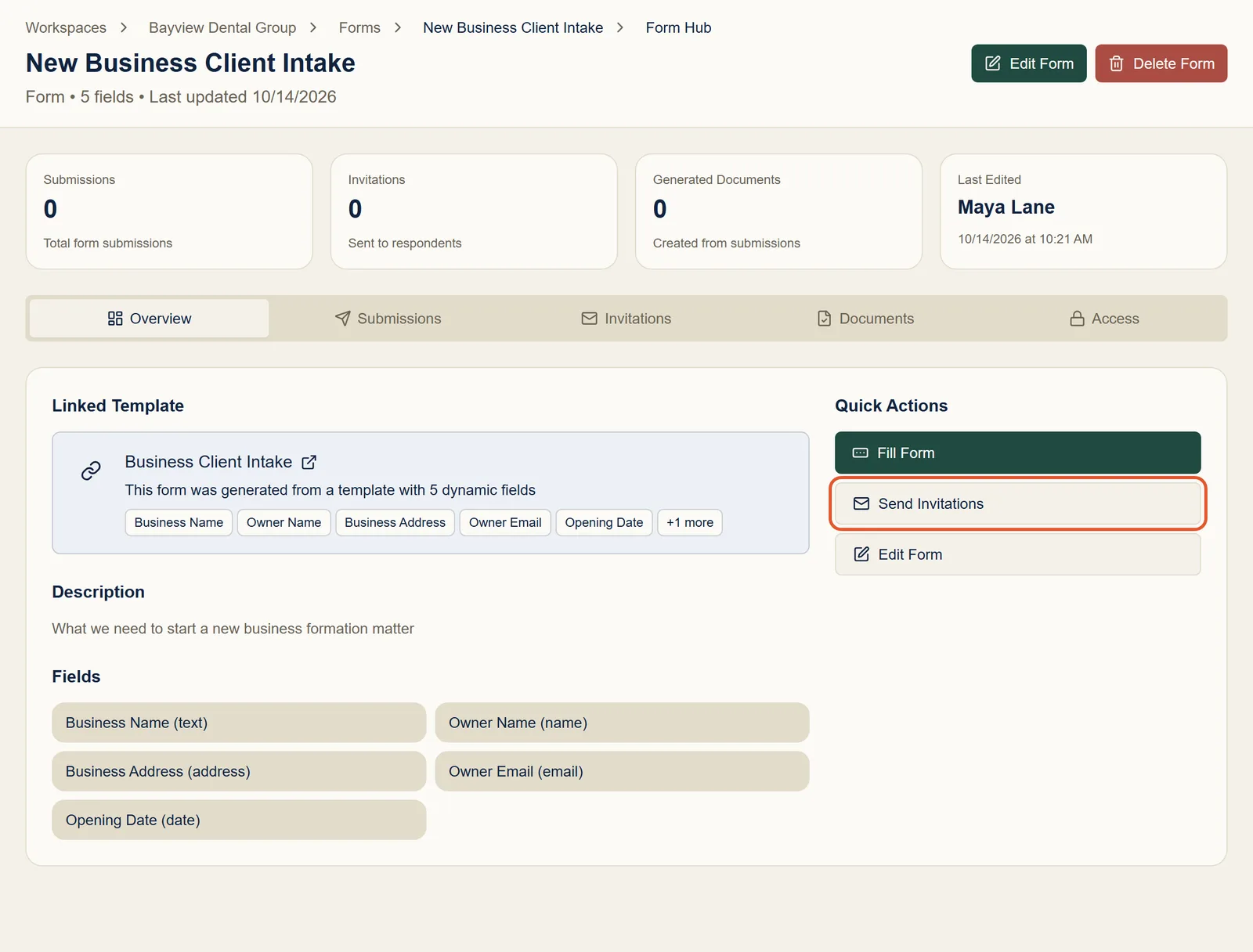
Open the form's page (from your workspace, go to Forms and click the form). Under Quick Actions, click Send Invitations.
Step 2: Enter your client's details and send
Leave Individual Invitation selected. Enter your client's email address and name, and add a personal message if you like. It appears in the email and at the top of the form.
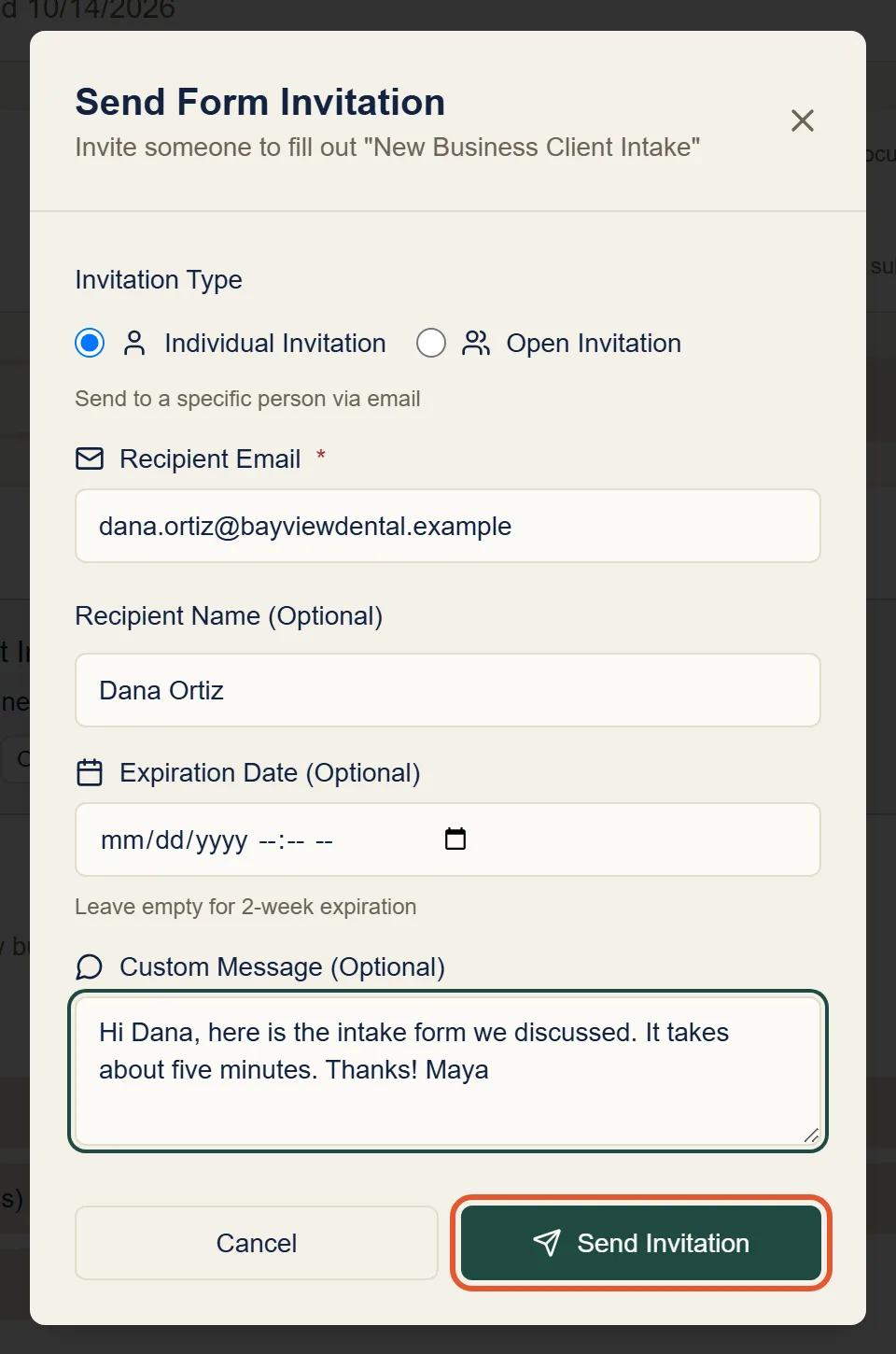
The invitation expires after two weeks. To give your client more or less time, pick a date under Expiration Date.
Click Send Invitation. To invite more people to the same form, open the dialog again for each one. Every invitation is tracked separately.
Step 3: Your client gets an email
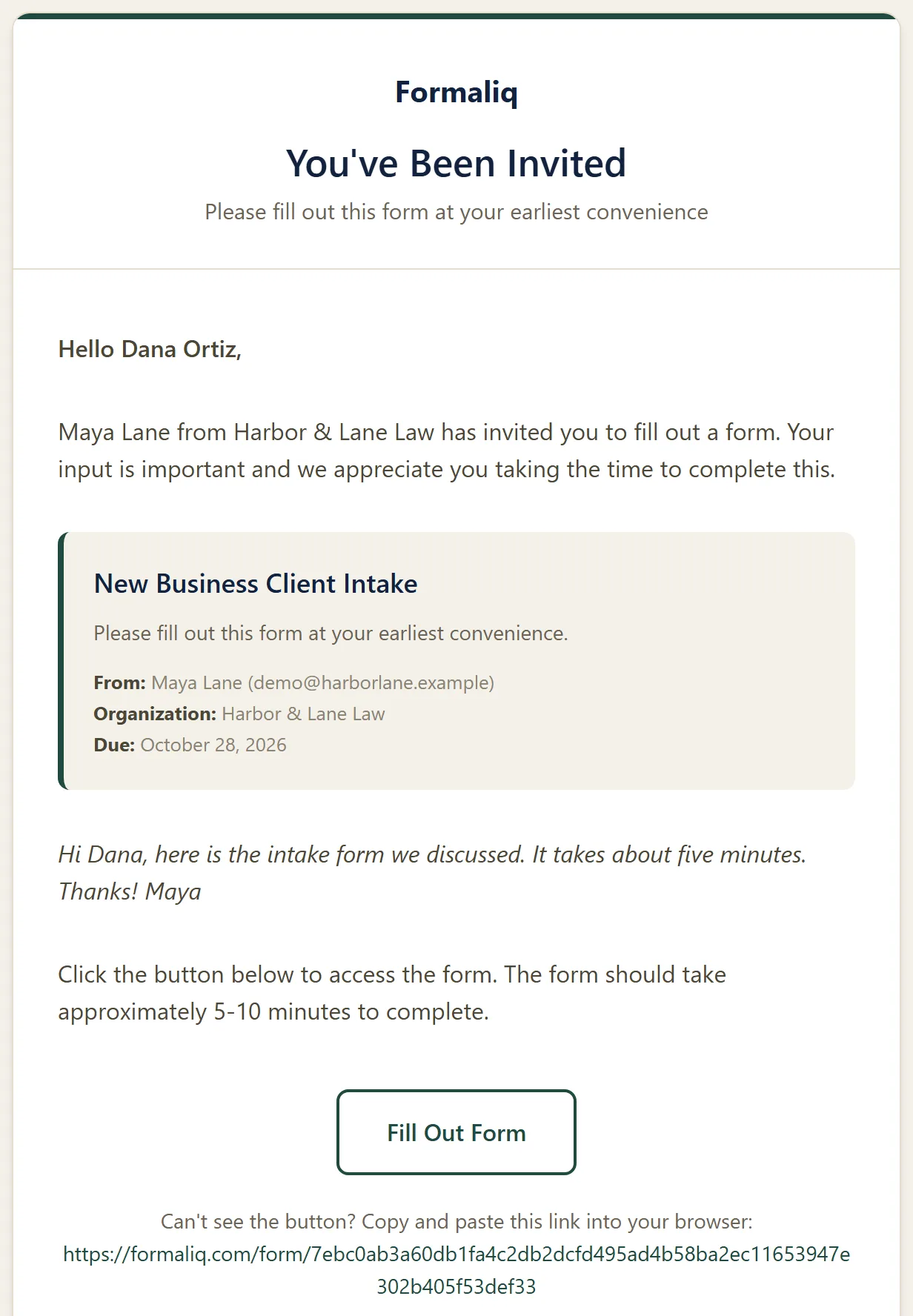
Your client receives an email from Formaliq with your name, your firm's name, your personal message, the due date, and a Fill Out Form button:
Step 4: Your client fills out the form
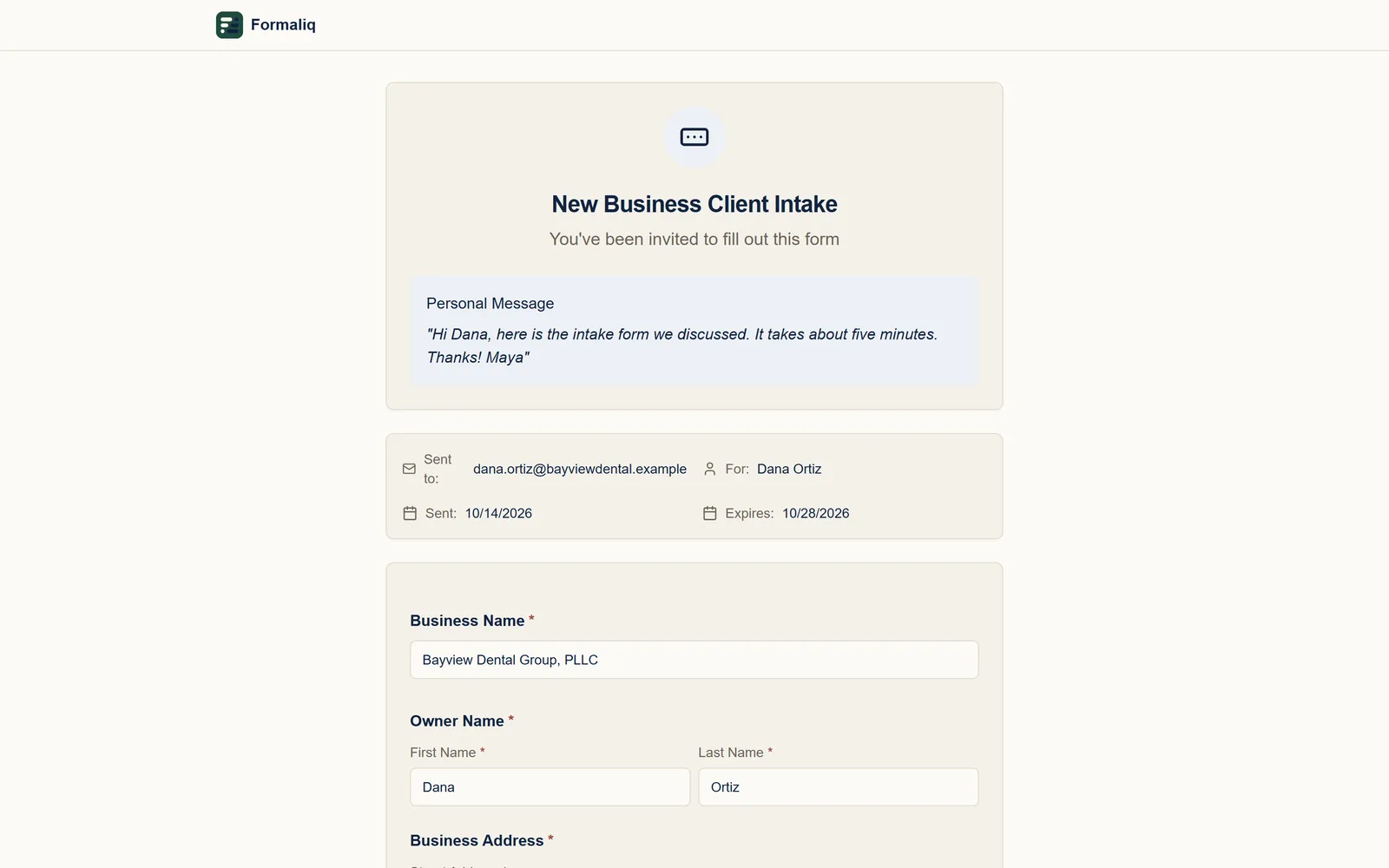
The button opens the form in any browser, on a computer or a phone, with nothing to download or sign up for. Your client sees your message and the questions:
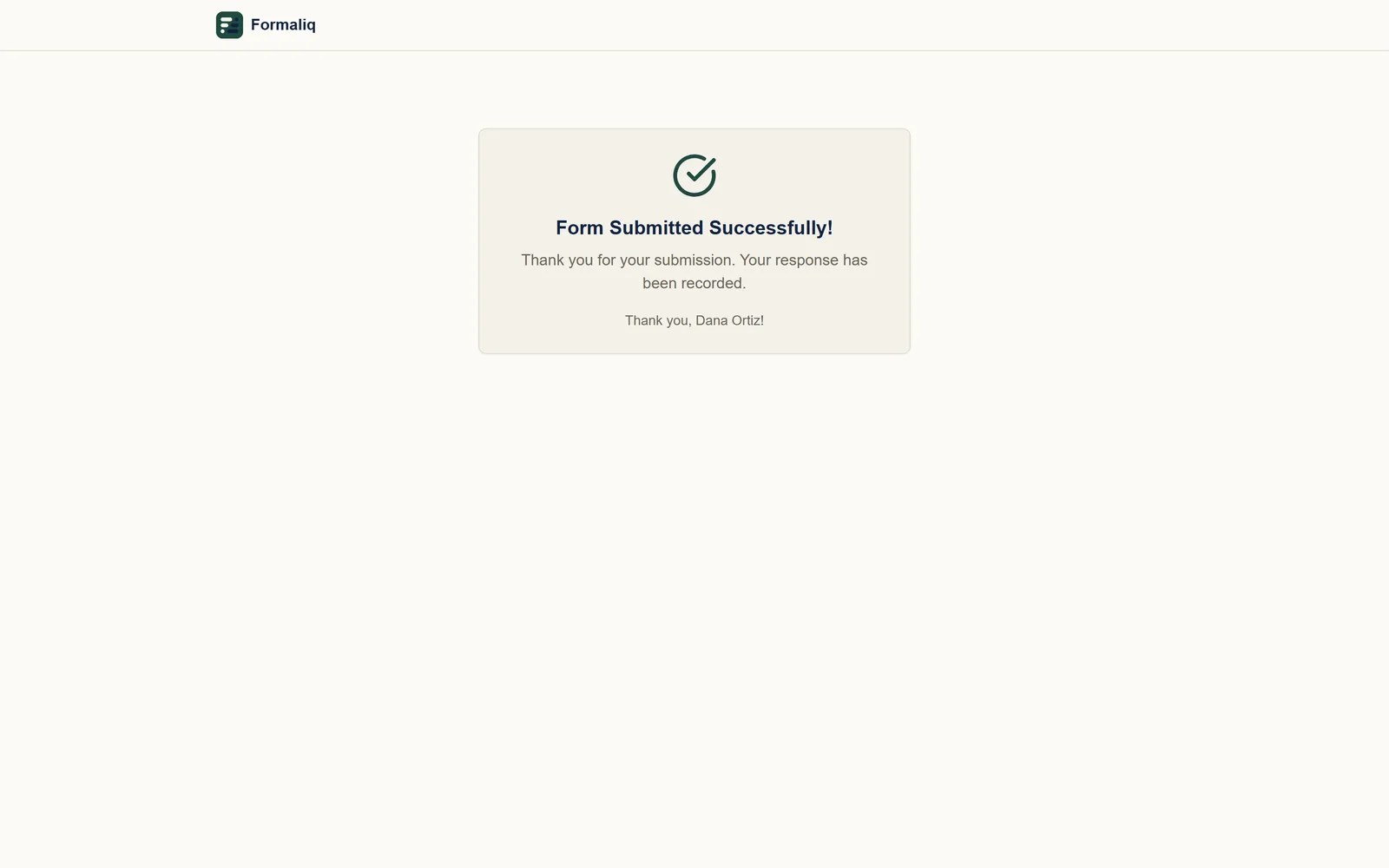
When they click Submit Form, they get a confirmation, and their answers are saved as a submission in your workspace.
Step 5: Track who has opened and submitted it
Back on the form's page, open the Invitations tab. Each invitation shows one of these statuses:
| Status | Meaning |
|---|---|
| Sent | The email went out, but your client hasn't opened the form yet. |
| Opened | Your client opened the form but hasn't submitted it. |
| Submitted | Your client finished the form. |
| Expired | The link passed its expiration date before it was submitted. |
Use the All Status filter to see, for example, only the invitations nobody has opened yet. If a client can't find the email, click Copy Link and send them the link yourself.
Step 6: Review their answers
Open the Submissions tab and click View to see everything your client entered. Or click View Submission on their row in the Invitations tab.
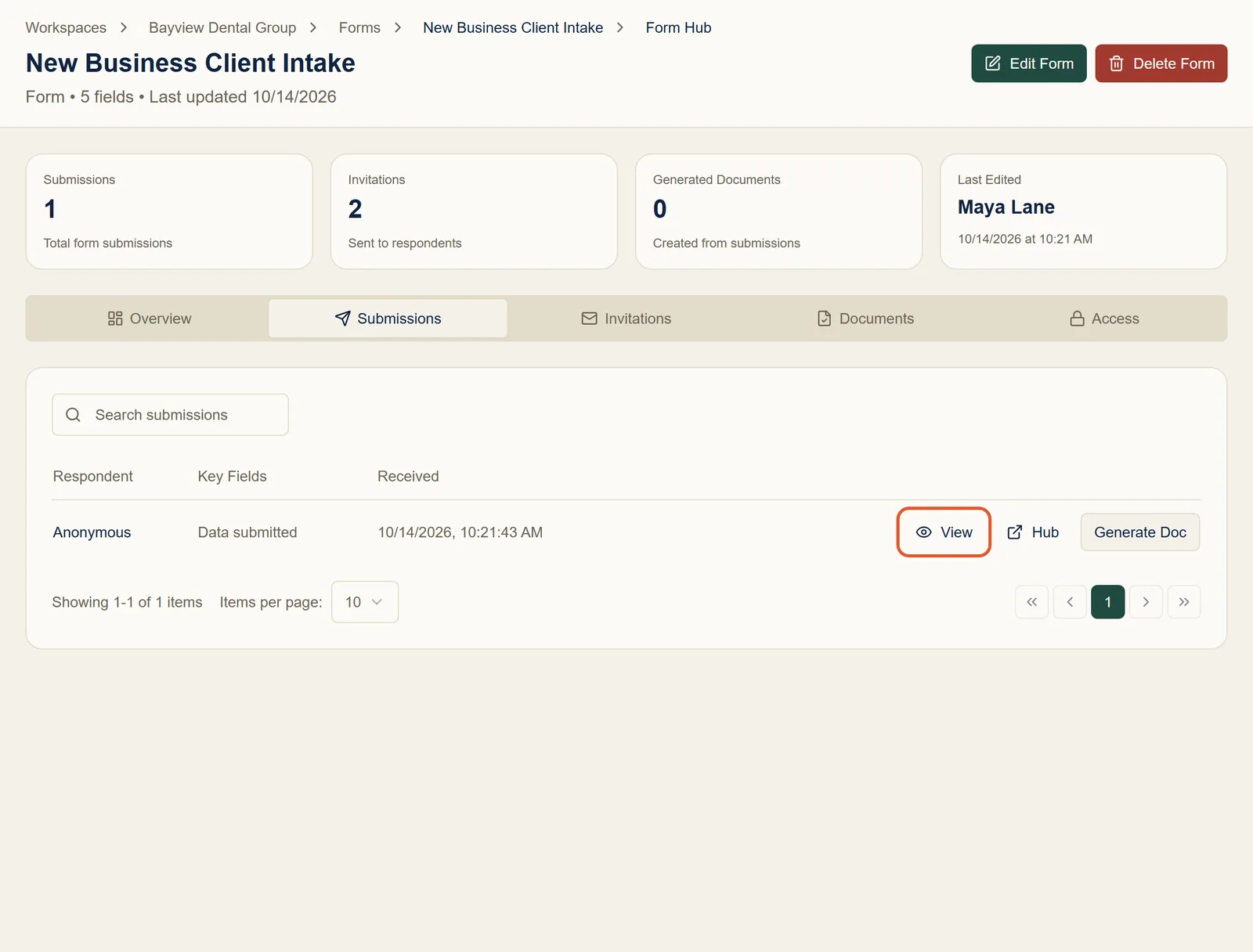
From here, Generate Doc fills a template with their answers. See Generate documents from form submissions.
Troubleshooting and FAQ
My client didn't get the email
Ask them to check their spam or junk folder for an email from Formaliq. If it isn't there, click Copy Link on the Invitations tab and send the link from your own email.
The invitation expired before my client finished
Send a new invitation from the form's page, and pick a later Expiration Date.
Can I send the same form to many people at once?
To collect responses from a group, choose Open Invitation in the dialog instead. You get one link that anyone can use; share it however you like. You won't see each person's status on the Invitations tab, but every response appears on the Submissions tab.
Why does a response show as Anonymous on the Submissions tab?
The respondent's name appears there when the form has a question with the
field name name or email. The Invitations tab always shows who
each invitation was sent to.
Can my client save the form and finish it later?
Their answers are saved when they click Submit Form, so ask them to fill it out in one sitting. They can open the link again any time before it expires.
Next steps
- Generate documents from form submissions: turn your client's answers into finished documents.
- Automate your client engagement letter: the whole flow, from template to finished letter.
- Forms: question types, validation, and questions that show only when they apply.