Send a document for e-signature and track it
No printing, scanning, or a separate e-signature service. Once a document is generated in Formaliq, you can mark where your client signs, email them a signing link, and watch its status until it's signed. Every step is recorded in an audit trail you can download as proof.
The example follows a fictional firm, Harbor & Lane Law, getting an engagement letter signed by its client, Elena Brooks.
What you'll build
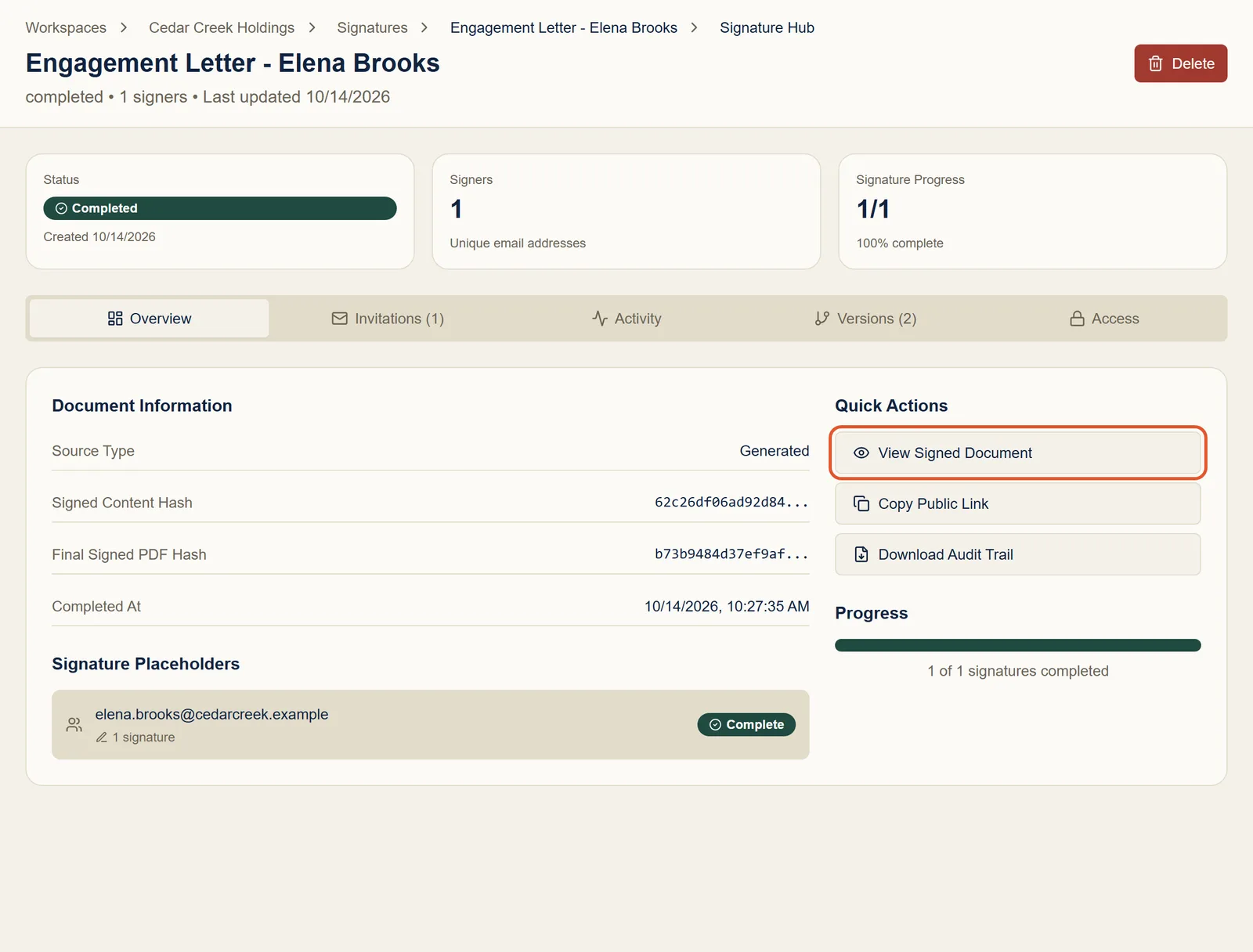
A signed document, with its status, the finished PDF, and a downloadable audit trail in one place:
Time needed: about 5 minutes to send. Your client needs a couple of minutes to sign.
Before you start
- A generated document to sign. See Generate documents from form submissions, or follow the engagement letter guide from the start.
- The signer's email address. Signers don't need a Formaliq account.
Step 1: Start from the generated document
Open the generated document's page (from your workspace, go to Documents and click it) and click Send for Signature.
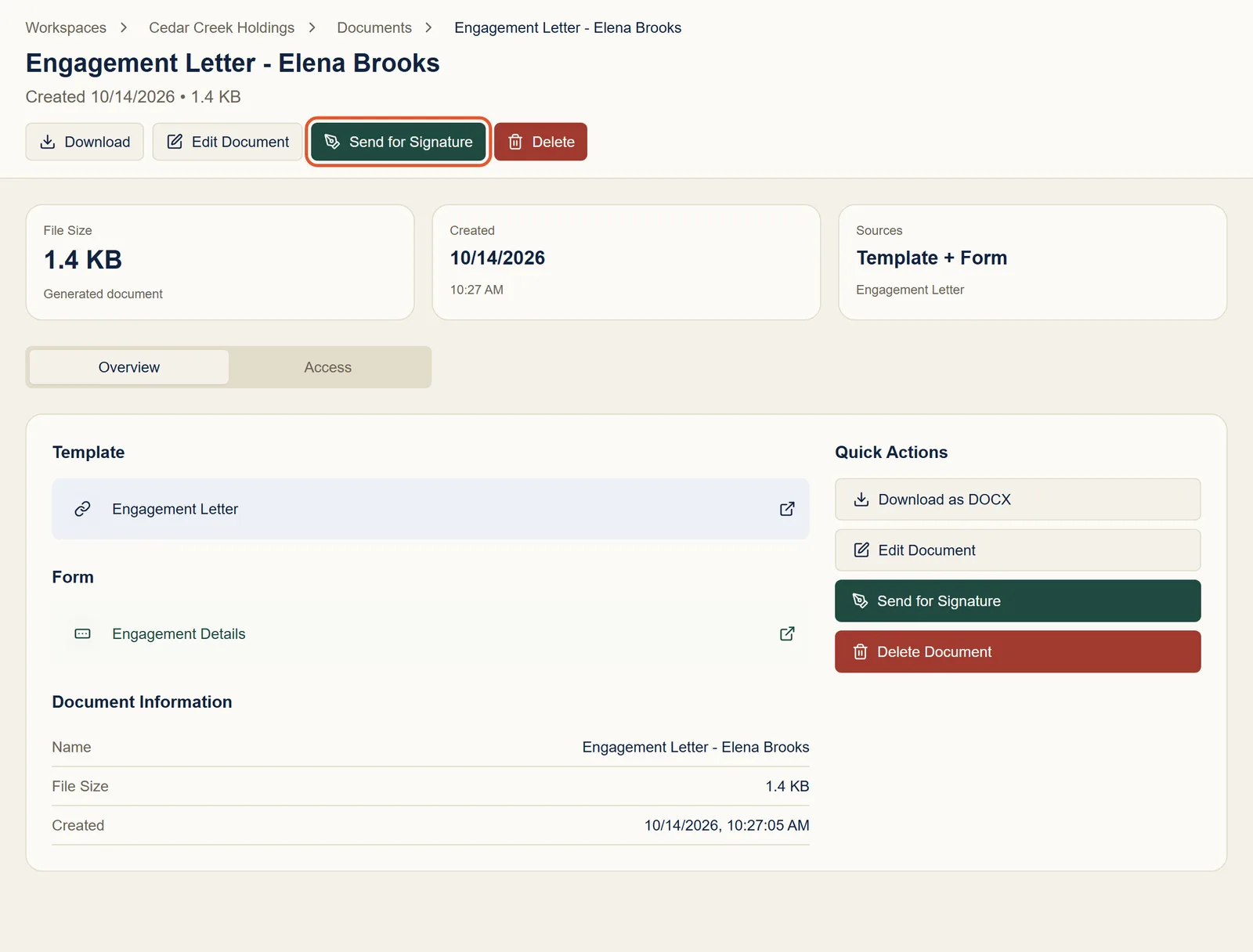
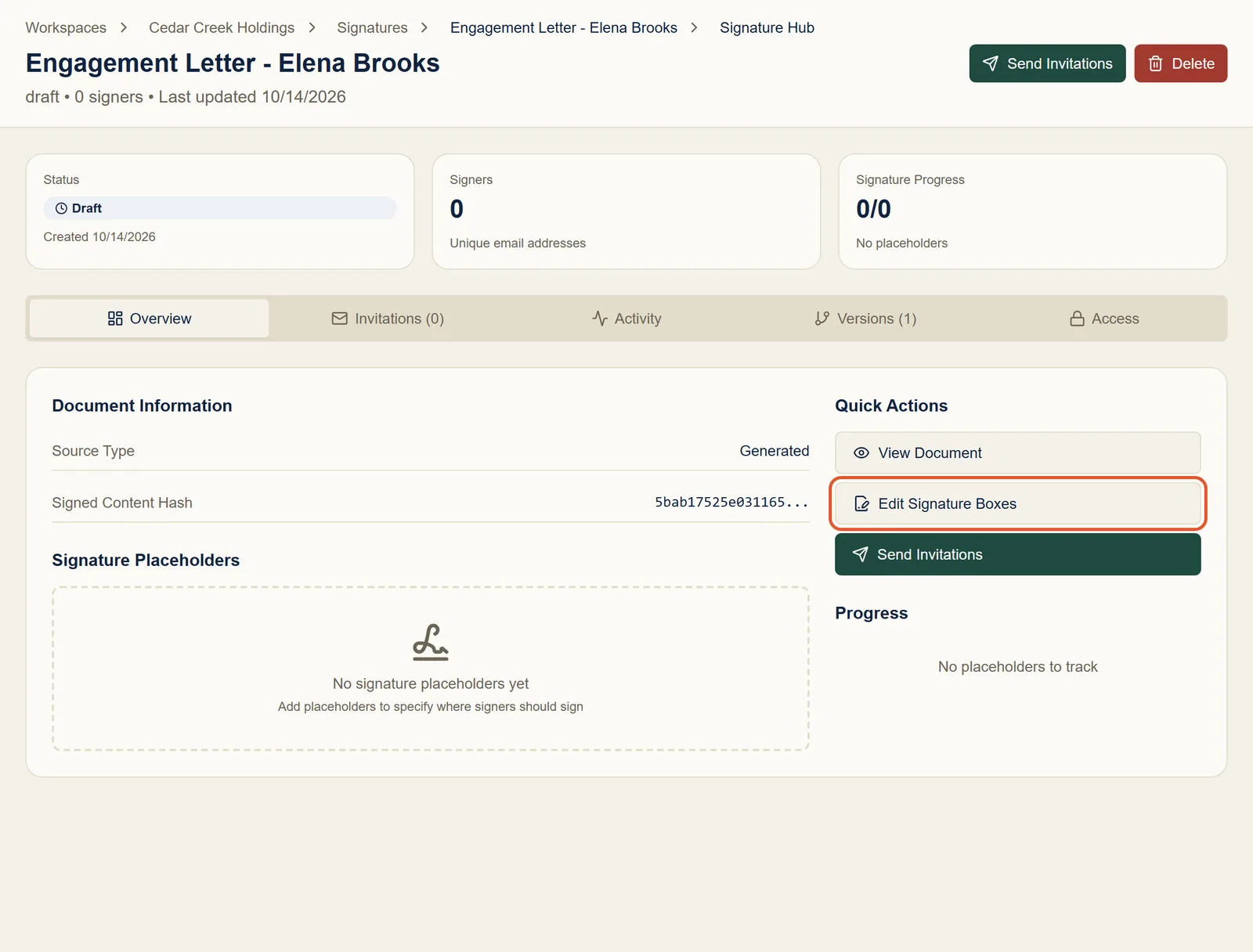
Formaliq creates a signable copy of the document, in Draft, and opens its signature page.
Step 2: Open the signature box editor
The draft has no signature boxes yet. Click Edit Signature Boxes.
Add signature spots to the template itself, and every document generated from it arrives with them already in place. See Signature Placeholders in Templates.
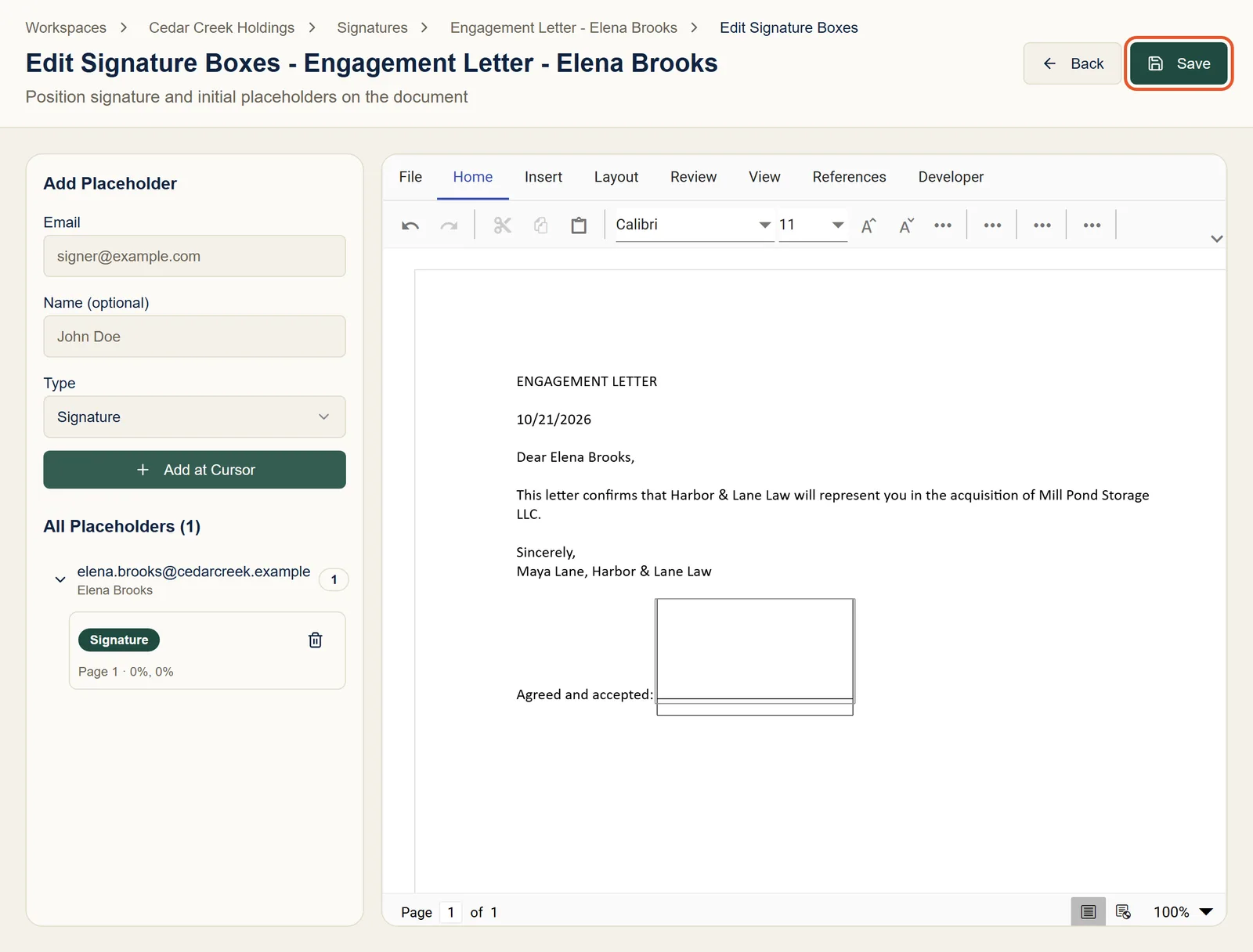
Step 3: Place the signature box
In the document, click where the signature should go, for example just after Agreed and accepted:. Then, under Add Placeholder, enter the signer's email address and name, leave Type as Signature, and click Add at Cursor.
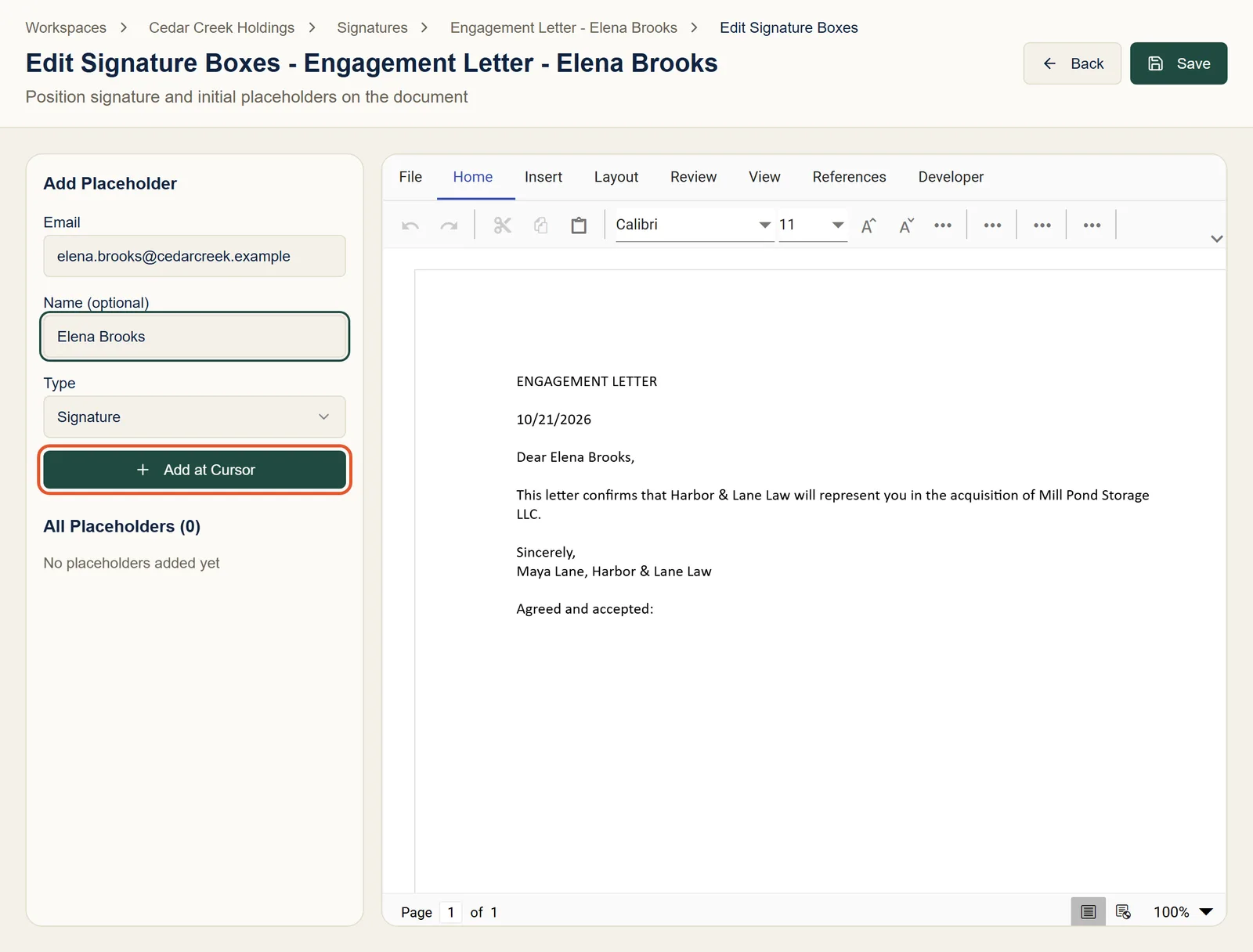
The box appears in the document and under All Placeholders. Add as many as you need: a box for each signer, or Initials and Date boxes using the Type dropdown. When you're done, click Save.
Step 4: Send it
Back on the signature page, check the signers and placeholders, then click Send Invitations.
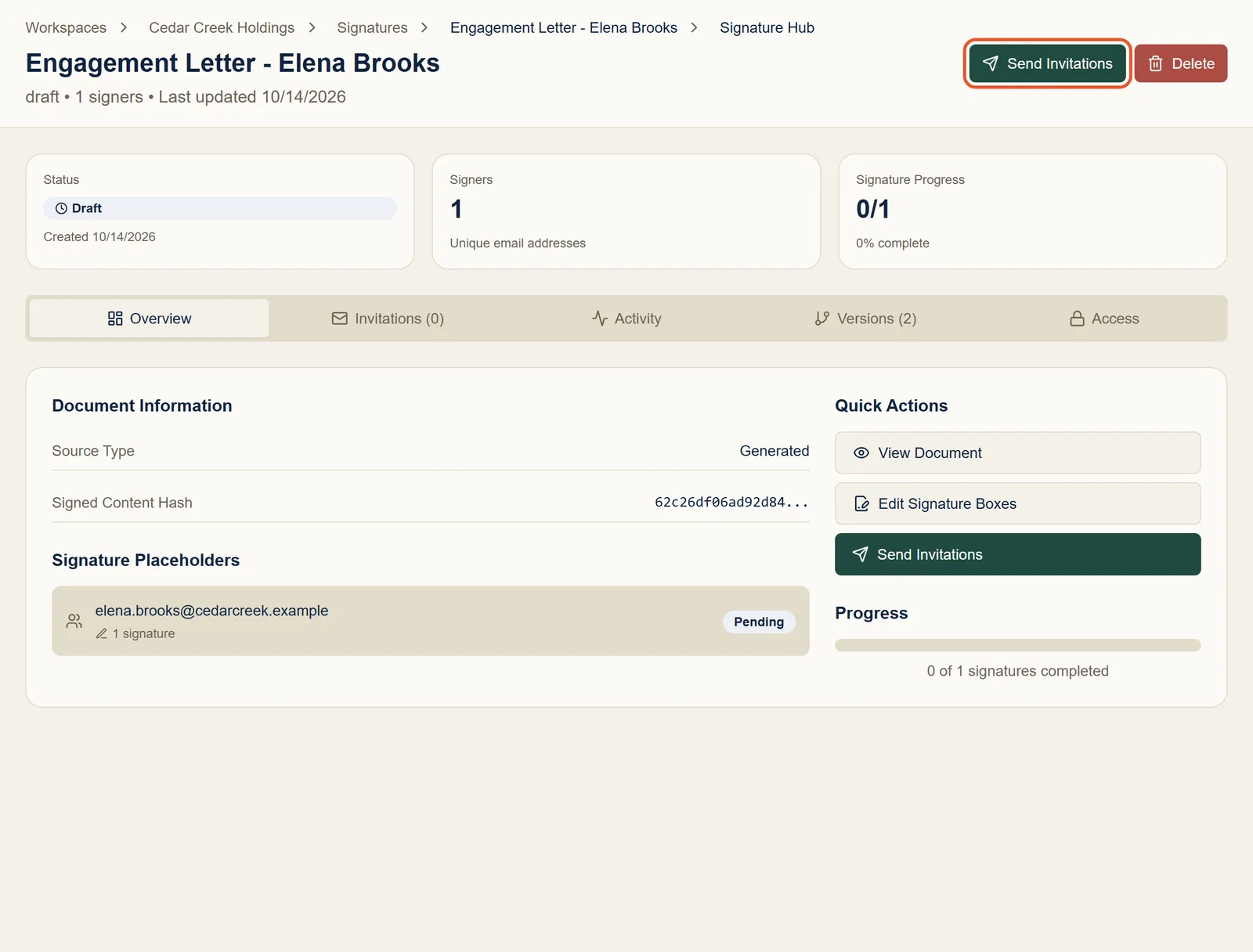
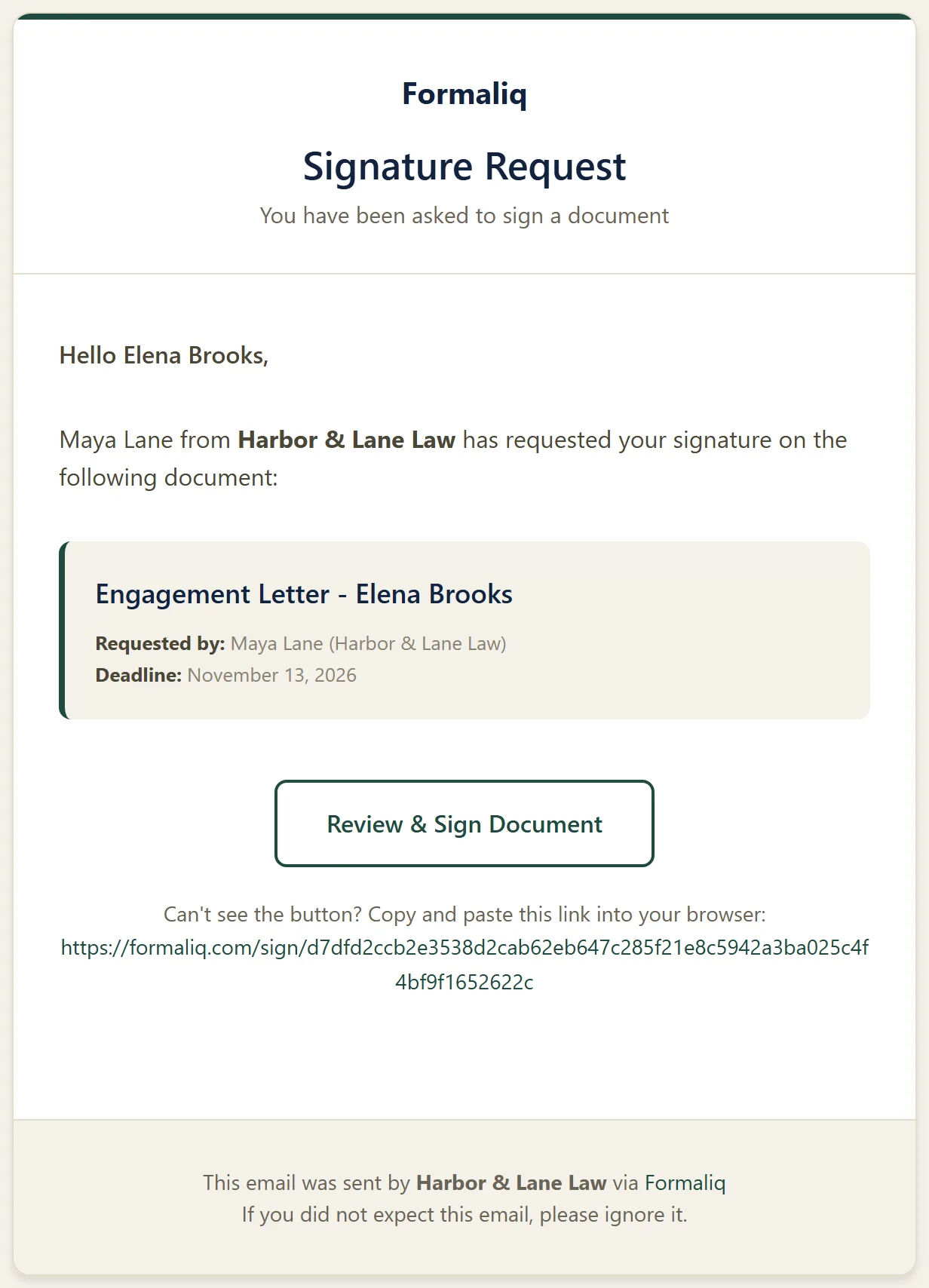
Each signer gets an email with a Review & Sign Document button. The link stays valid for 30 days.
Step 5: What your client sees when signing
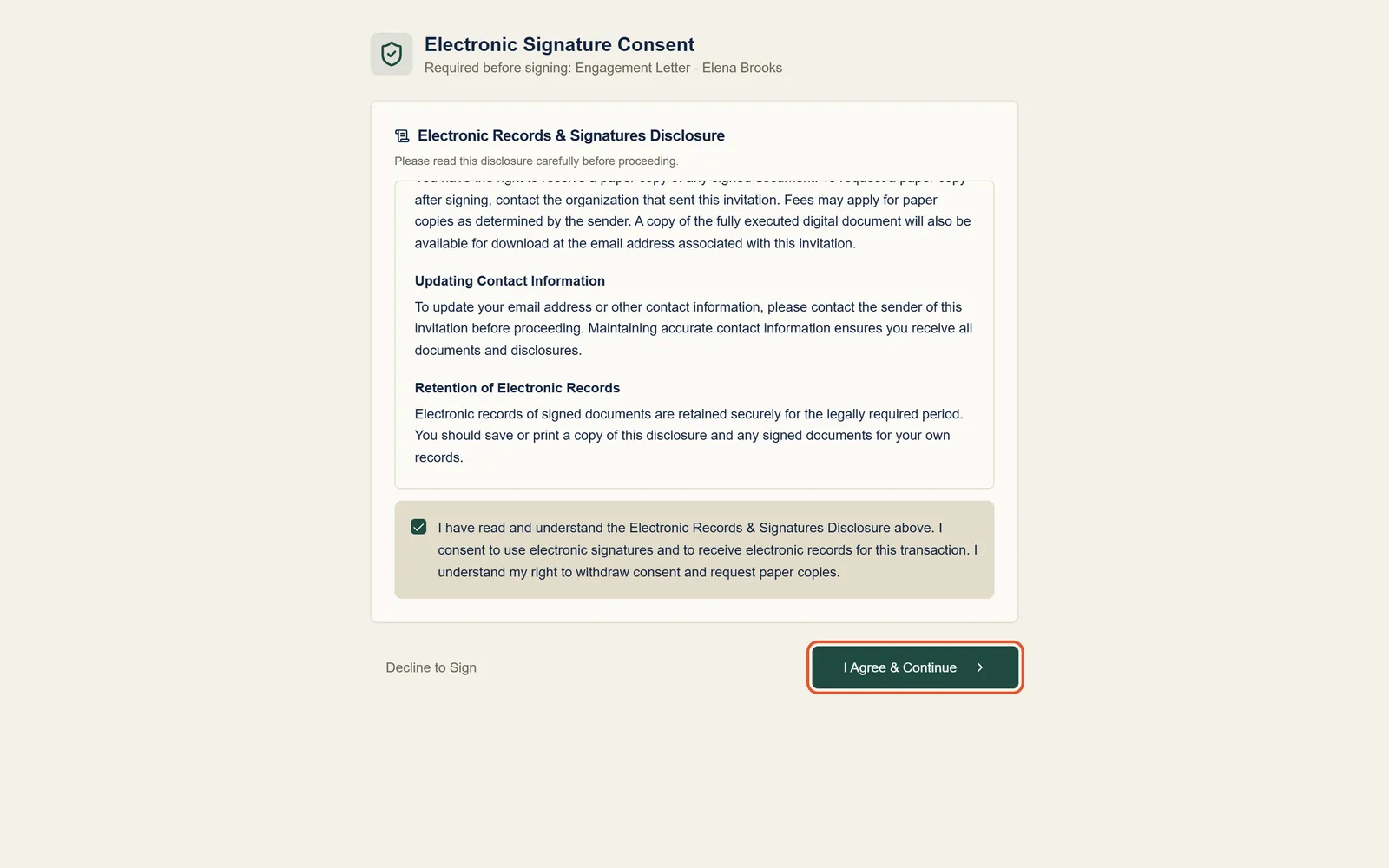
Your client opens the link in any browser, on a computer or a phone. They go through three short steps.
1. Agree to sign electronically. They read the electronic records and signatures disclosure, tick the box, and click I Agree & Continue.
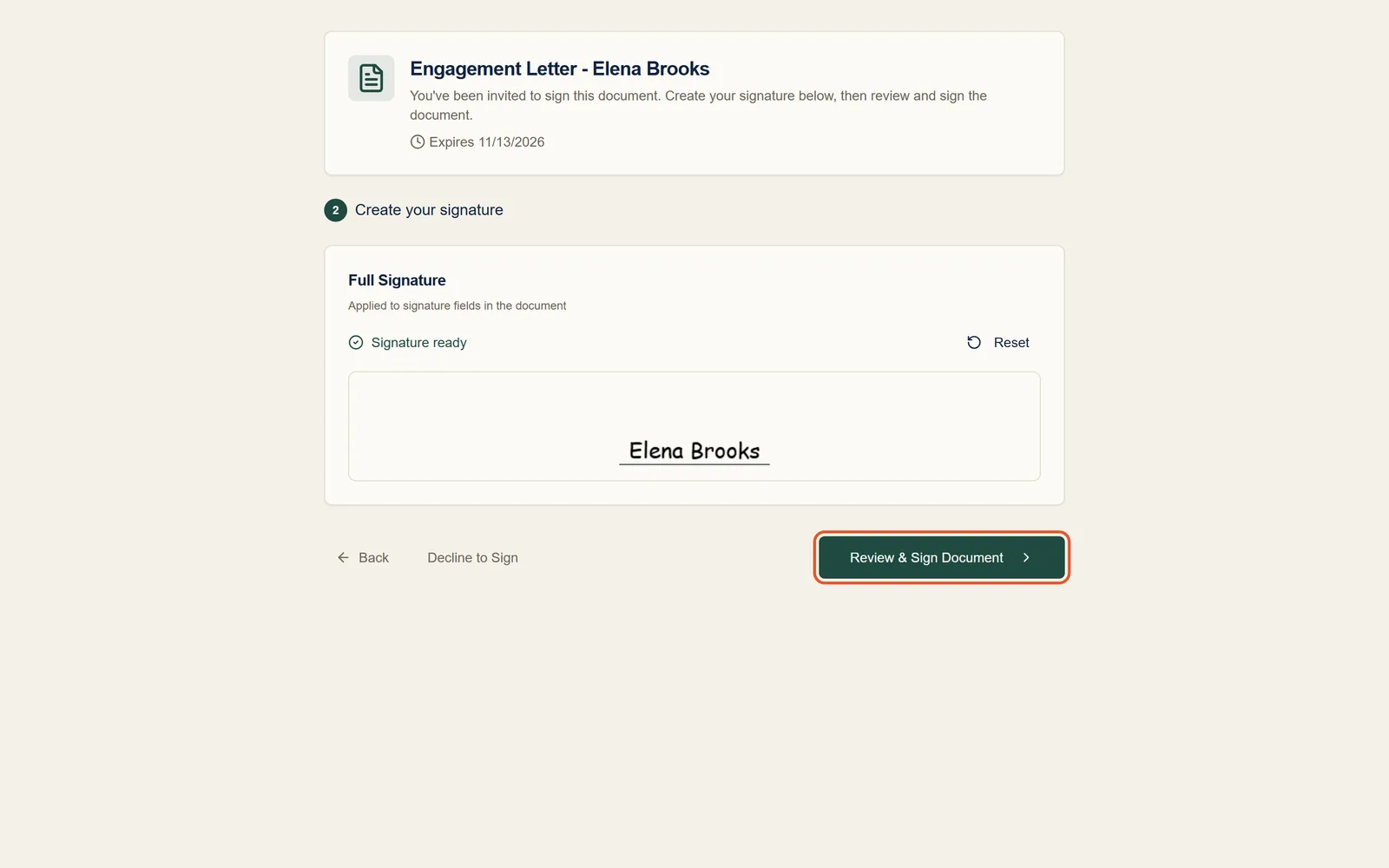
2. Create their signature. They draw it with a mouse or finger, or type their name, then click Review & Sign Document.
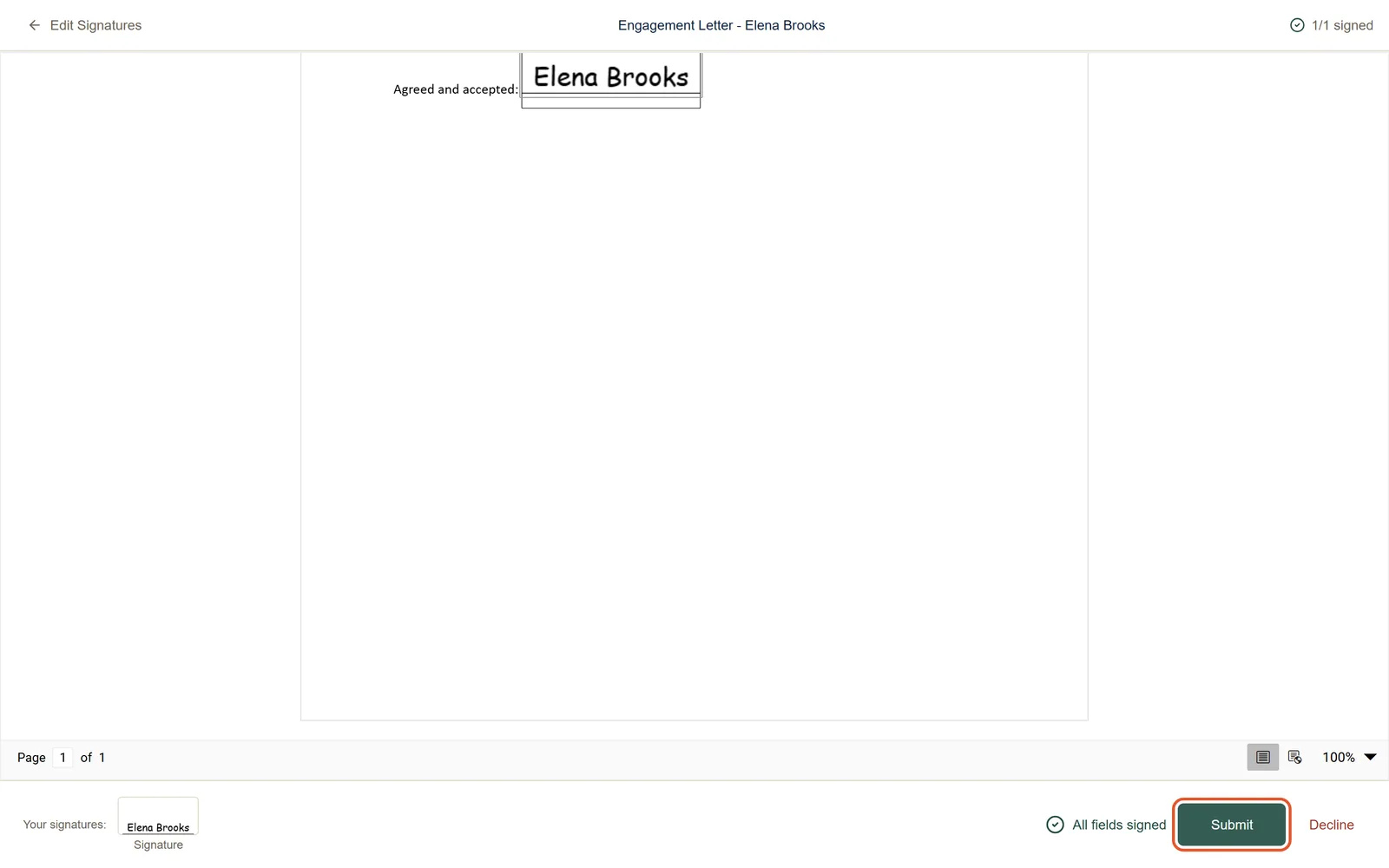
3. Sign the document. They scroll through the whole document, click each signature box to apply their signature, and click Submit.
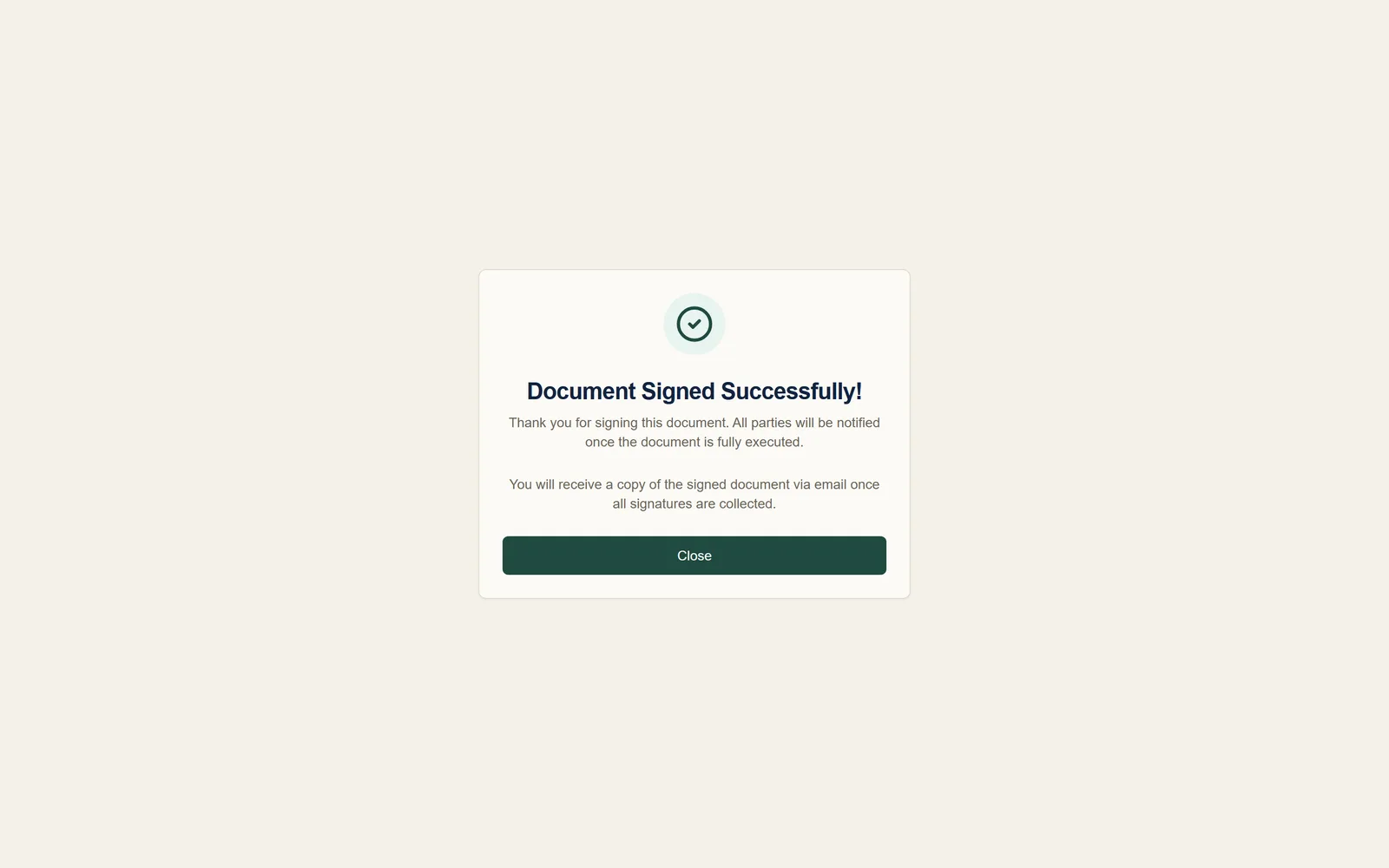
They see a confirmation, and get a copy of the signed document by email once everyone has signed.
Step 6: Track it and get the signed copy
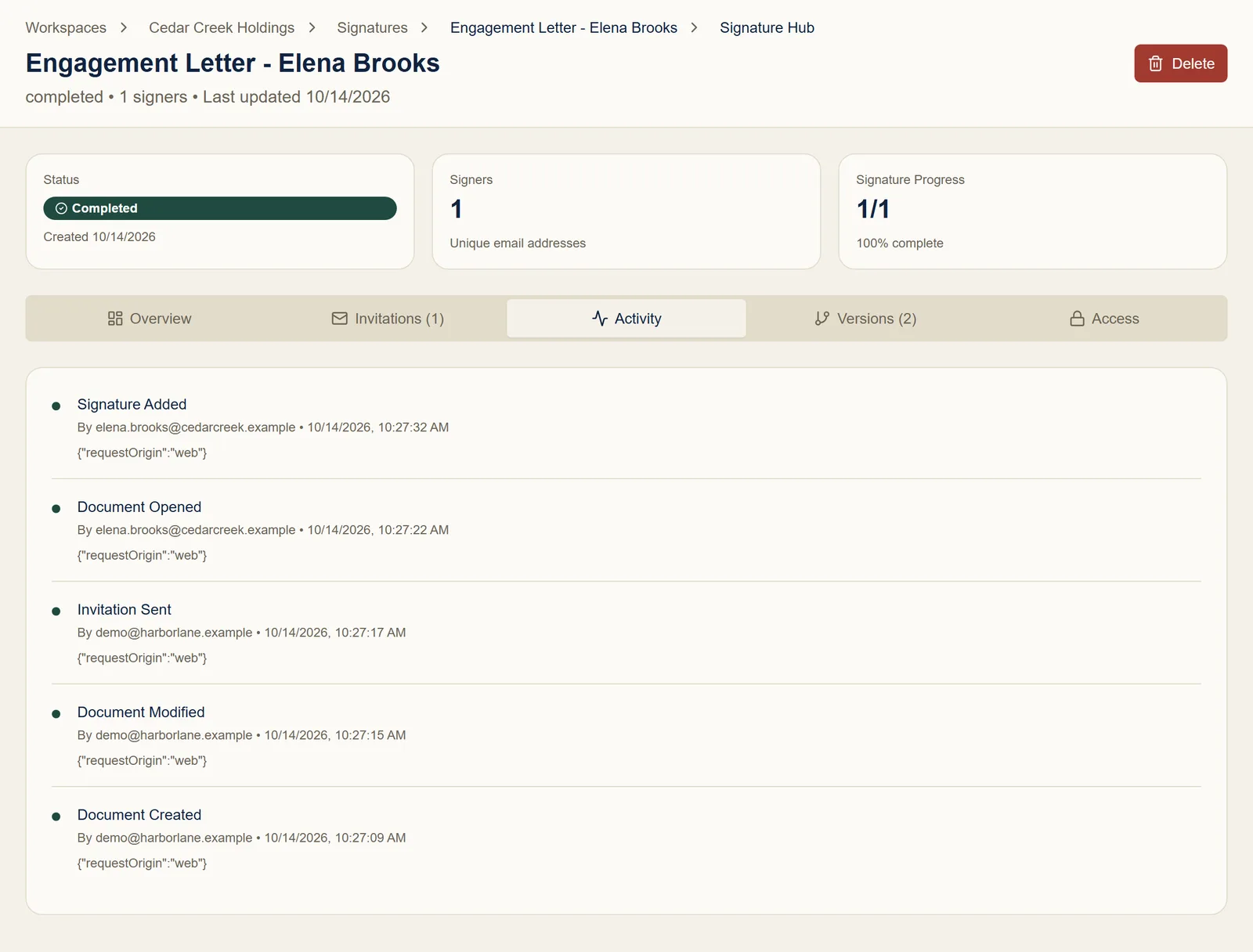
Open the document's signature page any time to see where it stands. The Status card shows Draft, Pending while it's out for signature, and Completed once everyone has signed. Signature Progress shows how many of the boxes are signed, and each signer is listed with their own status.
When it's complete, use Quick Actions to:
- View Signed Document: the final signed PDF.
- Copy Public Link: a link to the signed document you can share with anyone.
- Download Audit Trail: a PDF record of every step, for your file.
The Activity tab lists every event as it happens: when the document was created, sent, opened, and signed, and by whom.
Troubleshooting and FAQ
My client didn't get the signing email
Ask them to check their spam or junk folder. Then, on the signature page's Invitations tab, open the menu on their row and choose Resend Invitation or Send Reminder.
I made a mistake after sending
Click Recall Document. It cancels every signing link, returns the document to draft so you can fix it, and records your reason in the audit trail. Then send it again.
Can several people sign the same document?
Yes. Add a signature box for each signer's email address in Step 3. Each gets their own email, and the document completes when everyone has signed.
Is an e-signature from Formaliq legally binding?
Signers agree to sign electronically under the U.S. ESIGN Act and UETA before signing, and every step is recorded in a tamper-proof audit trail. See The Signing Experience and Audit Trail.
Next steps
- Signature Placeholders in Templates: build signature spots into your templates so documents arrive ready to send.
- Sending a Document for Signature: every option, including reminders and correcting a signer's email address.
- Audit Trail: what's recorded, and how to get a copy.