Generate documents from form submissions
Once your clients have filled out a form, every answer they gave can fill in a document for you: a fee agreement, a letter, or a contract. This guide covers the two ways to do it:
- One document per client. Each client's answers become their own document. Good for fee agreements, engagement letters, and intake summaries.
- One document from several forms. Two parties each fill out their own form, and their answers are combined into a single agreement. Good for NDAs, settlement terms, or anything with more than one side.
The examples follow a fictional estate planning practice, Lakeside Estate Planning, at Harbor & Lane Law.
What you'll build
A finished Word document for each client, generated from their answers, with nothing retyped:
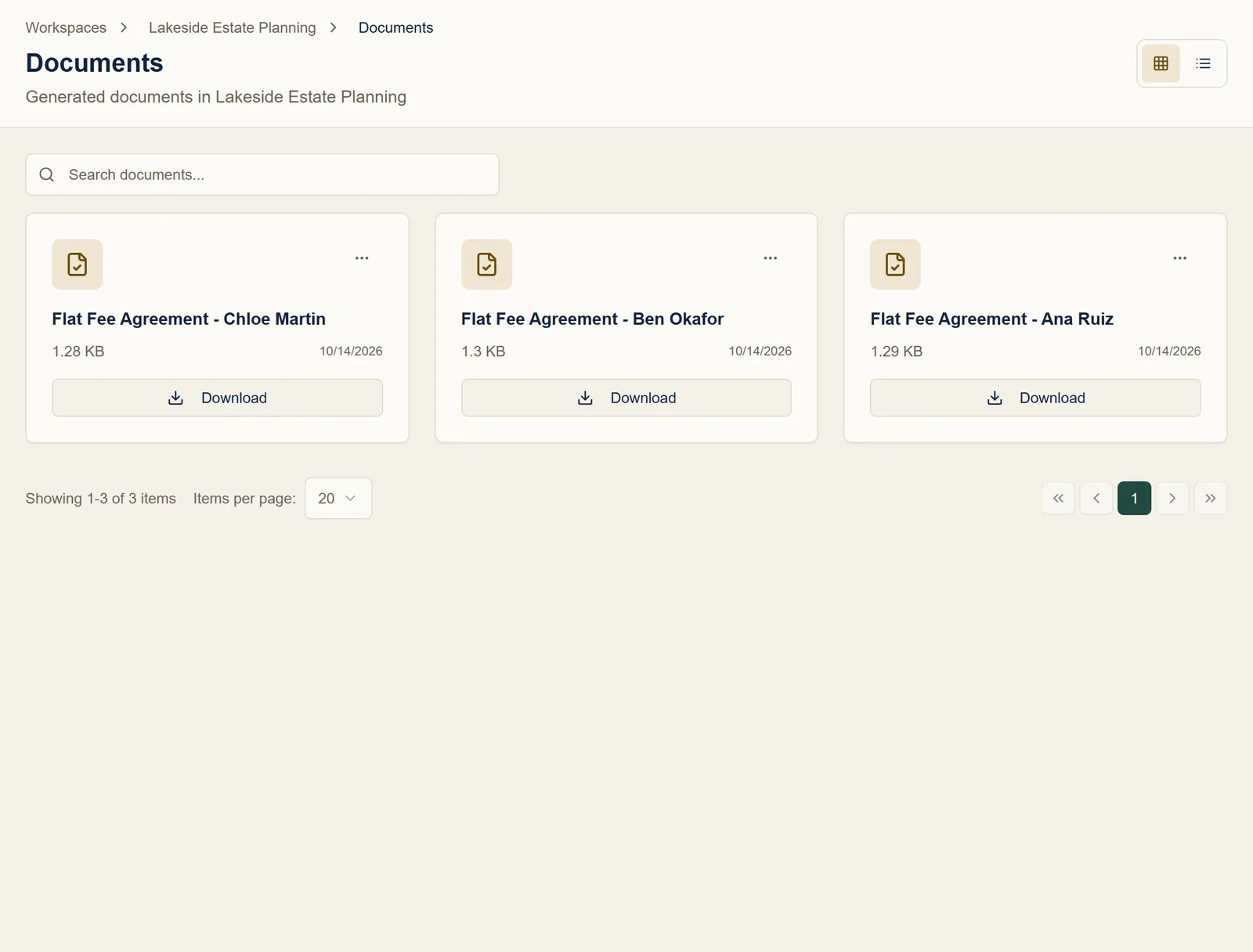
Time needed: under a minute per document, once your template and form are set up.
Before you start
- A template with placeholders, and a form built from it. If you don't have them yet, follow Turn a Word document into a fillable form.
- At least one submission to that form. See Send a form to a client and track the response.
This guide uses a flat fee agreement template:
FLAT FEE AGREEMENT

Date: {{date_agreement}}
Client: {{name}}
Matter: {{text_matter}}
Flat fee: ${{number_flat_fee}}
Part 1: One document per client
Step 1: Find the client's submission
In your workspace, open Submissions. Every response to every form in the workspace is listed here, newest first, with the client's name and the form they filled out. Use the search box to find a client quickly.
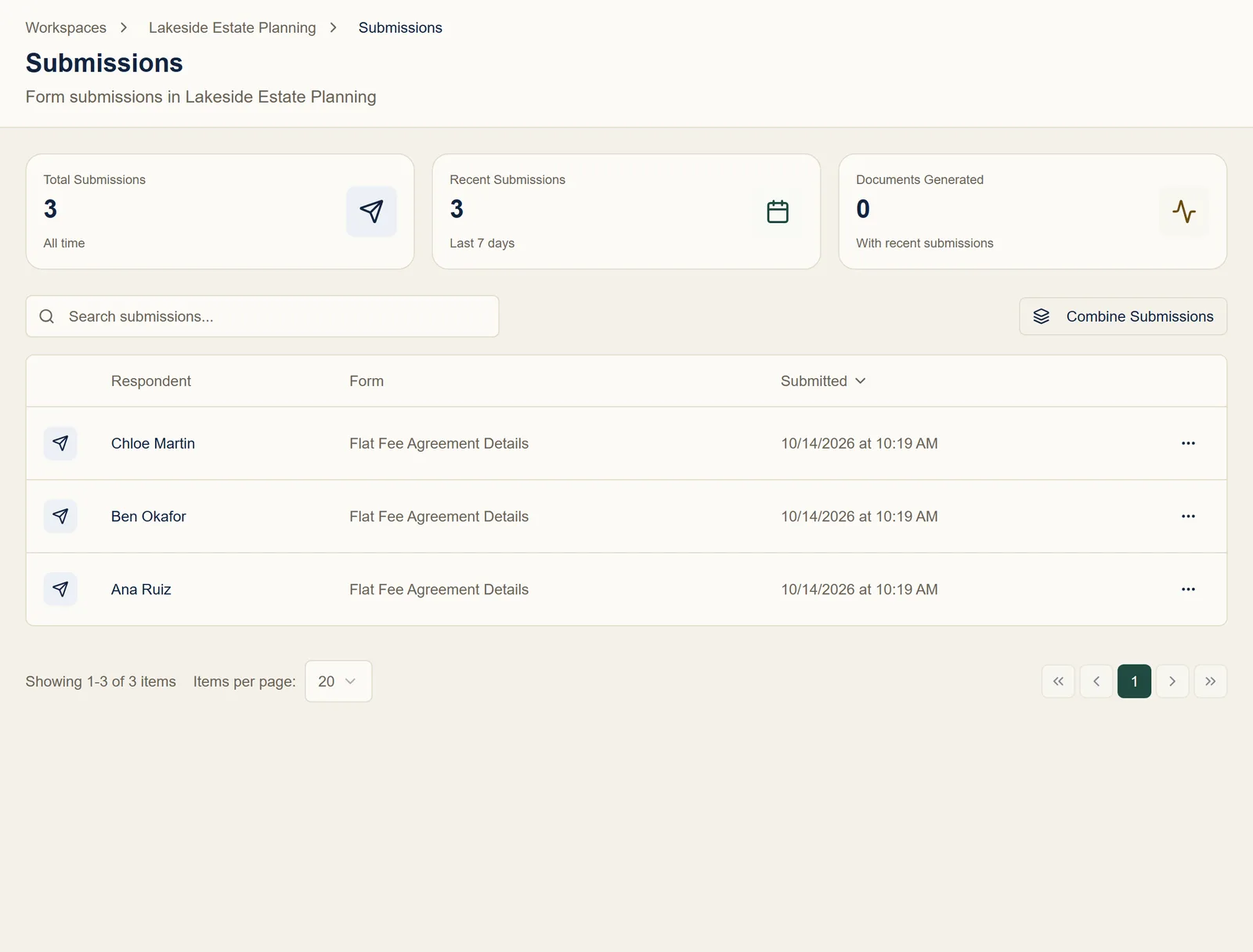
Click a client's name to open their submission.
Step 2: Click Generate Document
The submission's page shows when it came in and which form it came from. Click View Full Submission to check their answers first, or go straight to Generate Document under Quick Actions.
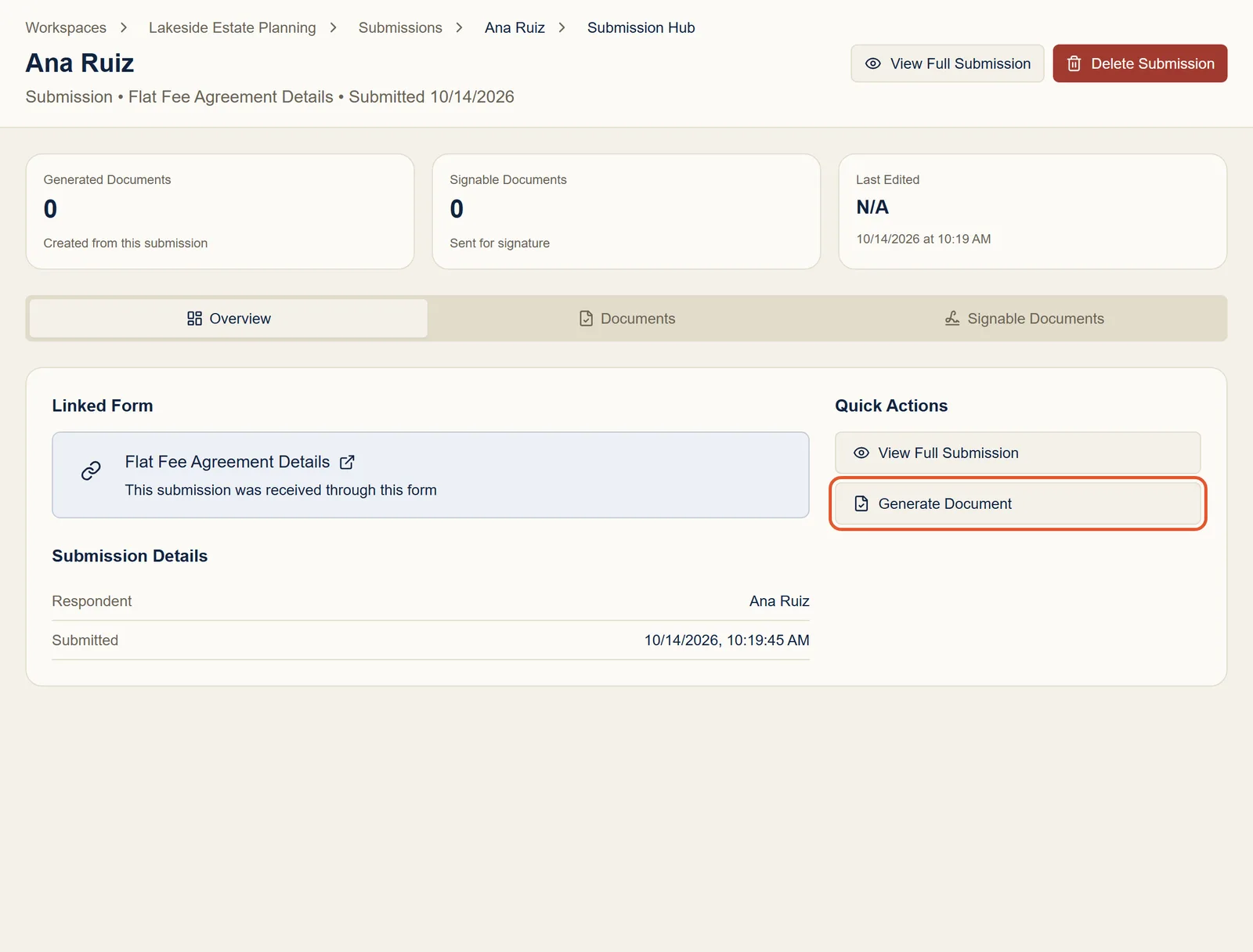
You can also click Generate Doc next to a response on the form's Submissions tab. It opens the same dialog.
Step 3: Name it and generate
Give the document a name you'll recognize later, such as Flat Fee Agreement - Ana Ruiz. Under Submission Data to Include, check that the client's answers look right, then click Generate.
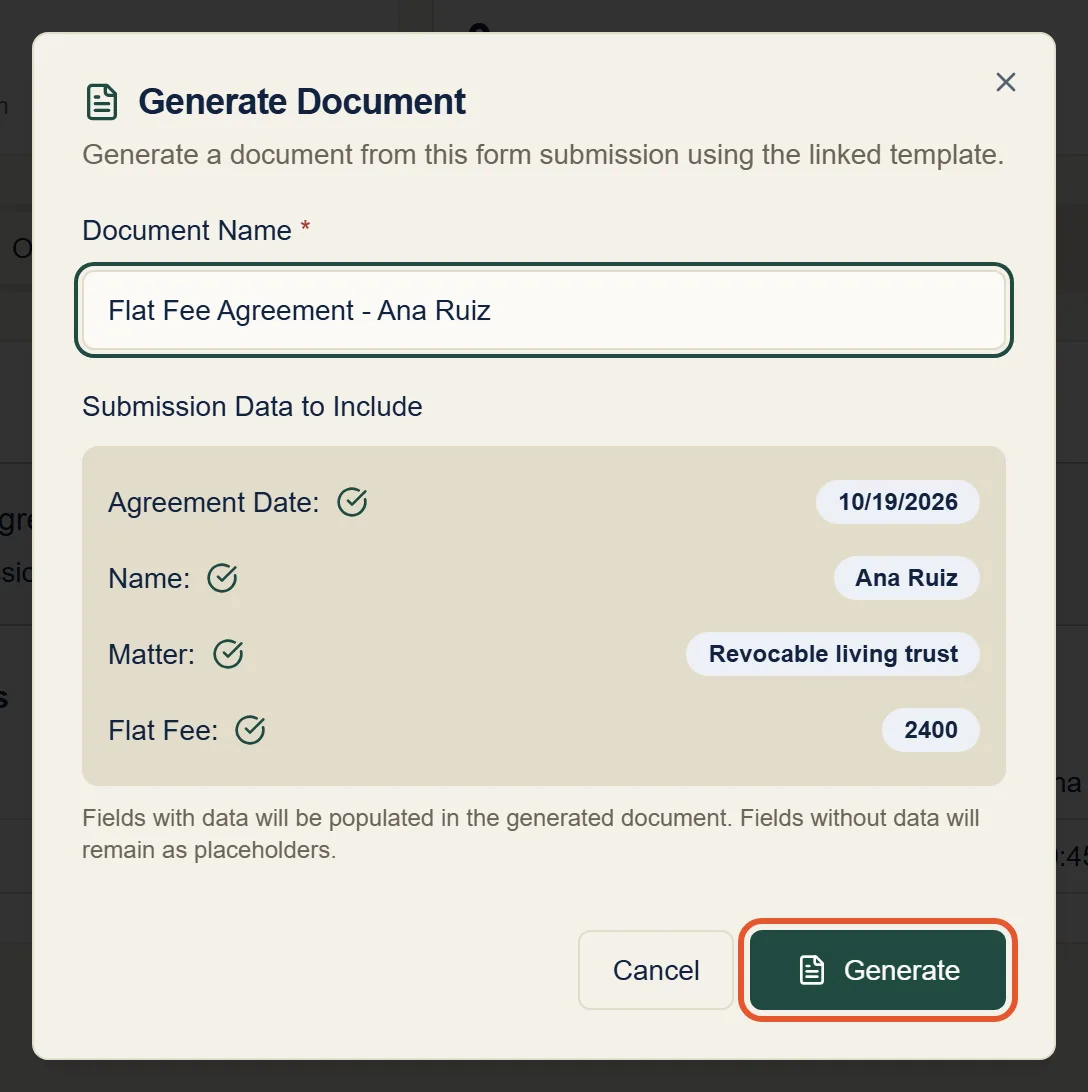
Formaliq fills every placeholder in the template with the client's answers. It takes a few seconds. Click Download to save the Word document, or Go to Document to open its page.
Step 4: Repeat for each client
Do the same for each client's submission. Every generated document is saved in the workspace's Documents page, where you can download it again, edit it, or send it for signature.
Part 2: One document from several forms
Some documents need answers from more than one person. A mutual NDA, for example, needs each party's company and signer. Rather than one long form that both parties pass around, give each party a short form of their own and combine their answers into one document.
Step 5: Set up one template and a form for each party
Create one template with placeholders for both parties:
MUTUAL NON-DISCLOSURE AGREEMENT

Effective date: {{date_effective}}

Party A: {{text_party_a_company}}, represented by {{text_party_a_signer}}
Party B: {{text_party_b_company}}, represented by {{text_party_b_signer}}
Then click Create Form from Template twice, once per party: an NDA - Party A Details form and an NDA - Party B Details form. In the form editor, delete the other party's questions from each, so each party only sees their own. Send each form to its party.
Step 6: Select both submissions
Once both parties have submitted, go to your workspace's Submissions page and click Combine Submissions. Tick each party's submission.
After your first pick, the list shows only submissions from forms built on the same template, so you can't combine the wrong ones by mistake. You can combine up to five submissions.
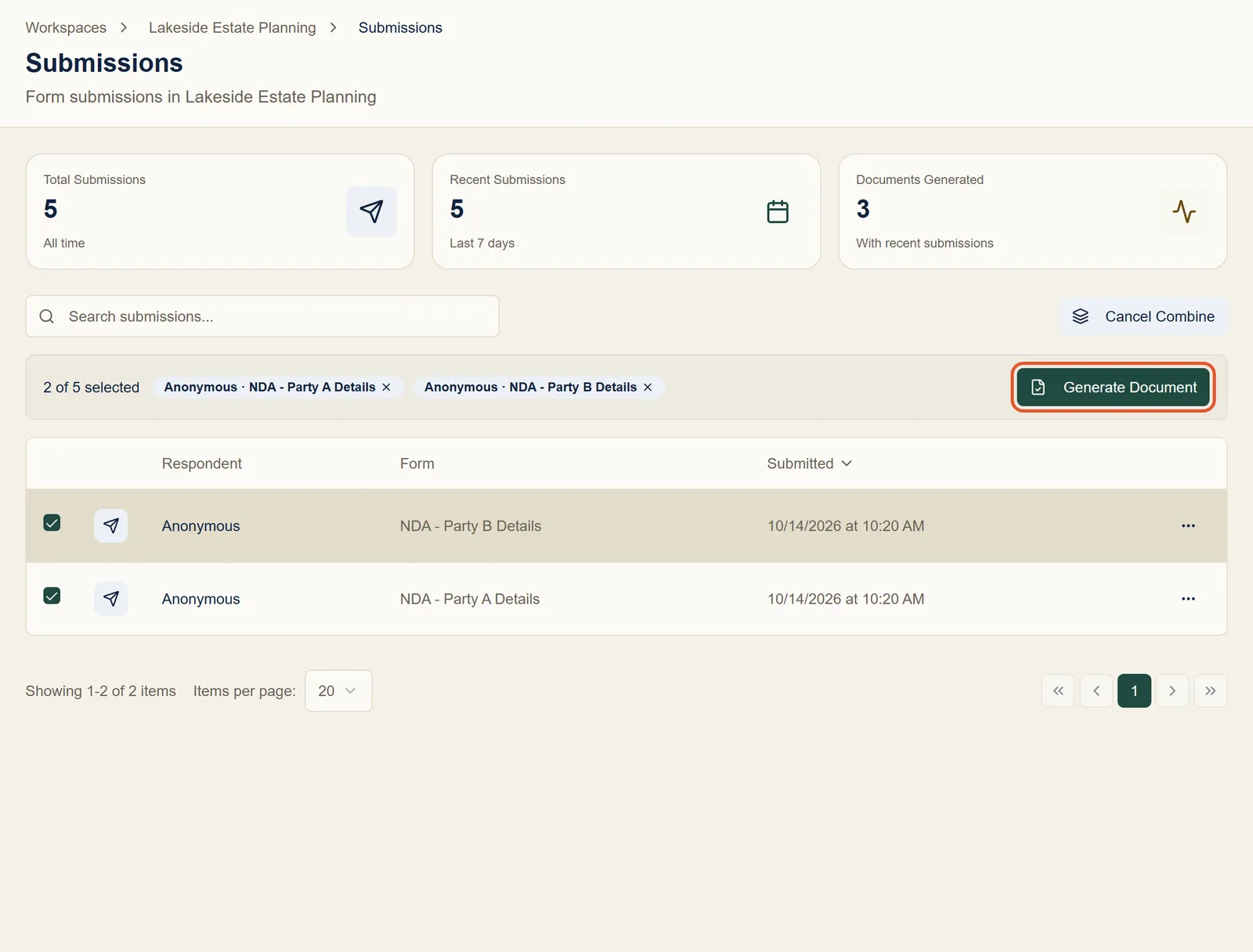
Click Generate Document.
Step 7: Generate the combined document
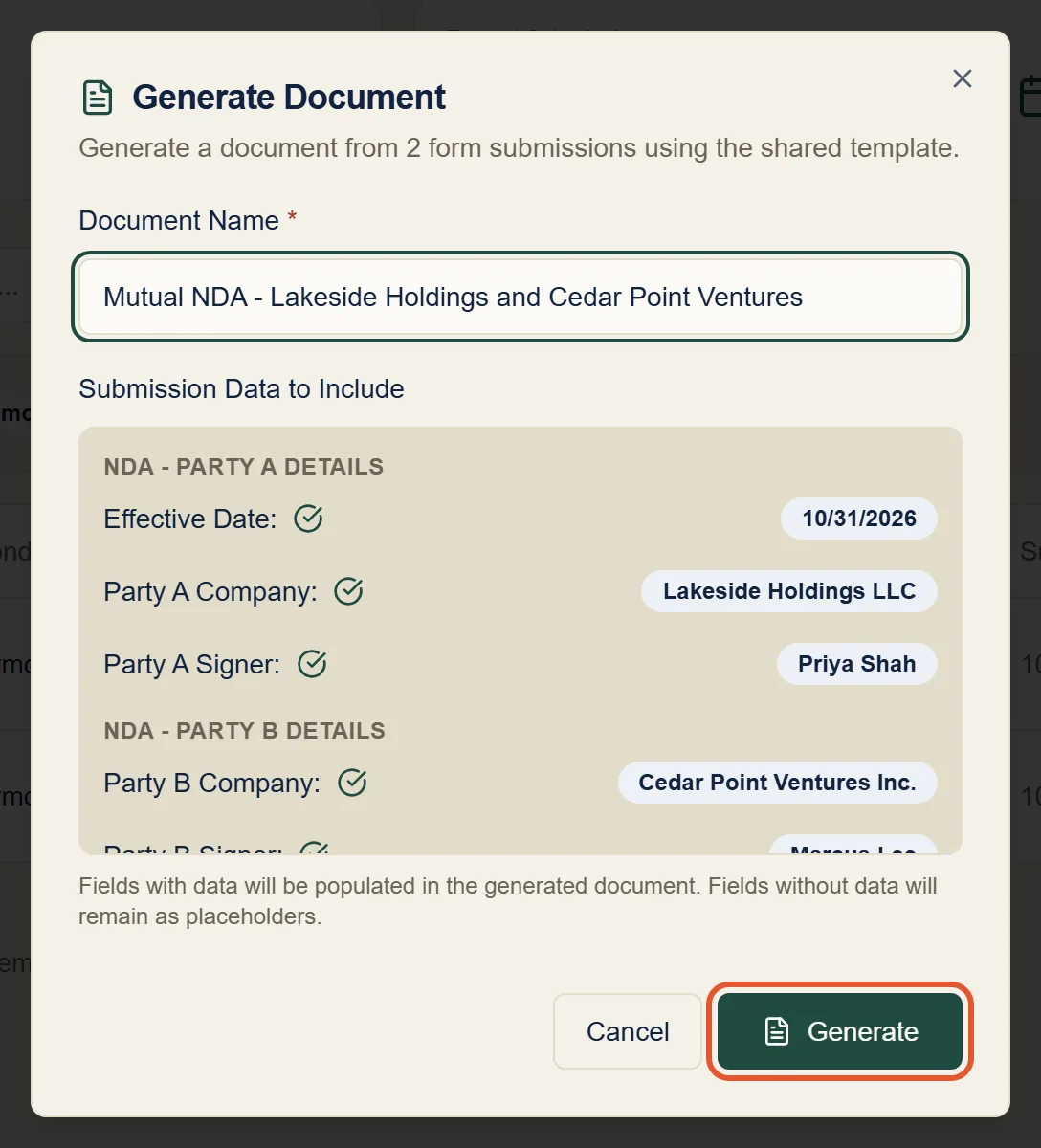
Name the document and check the answers. They're grouped by form, so you can see which party gave which answer. Click Generate.
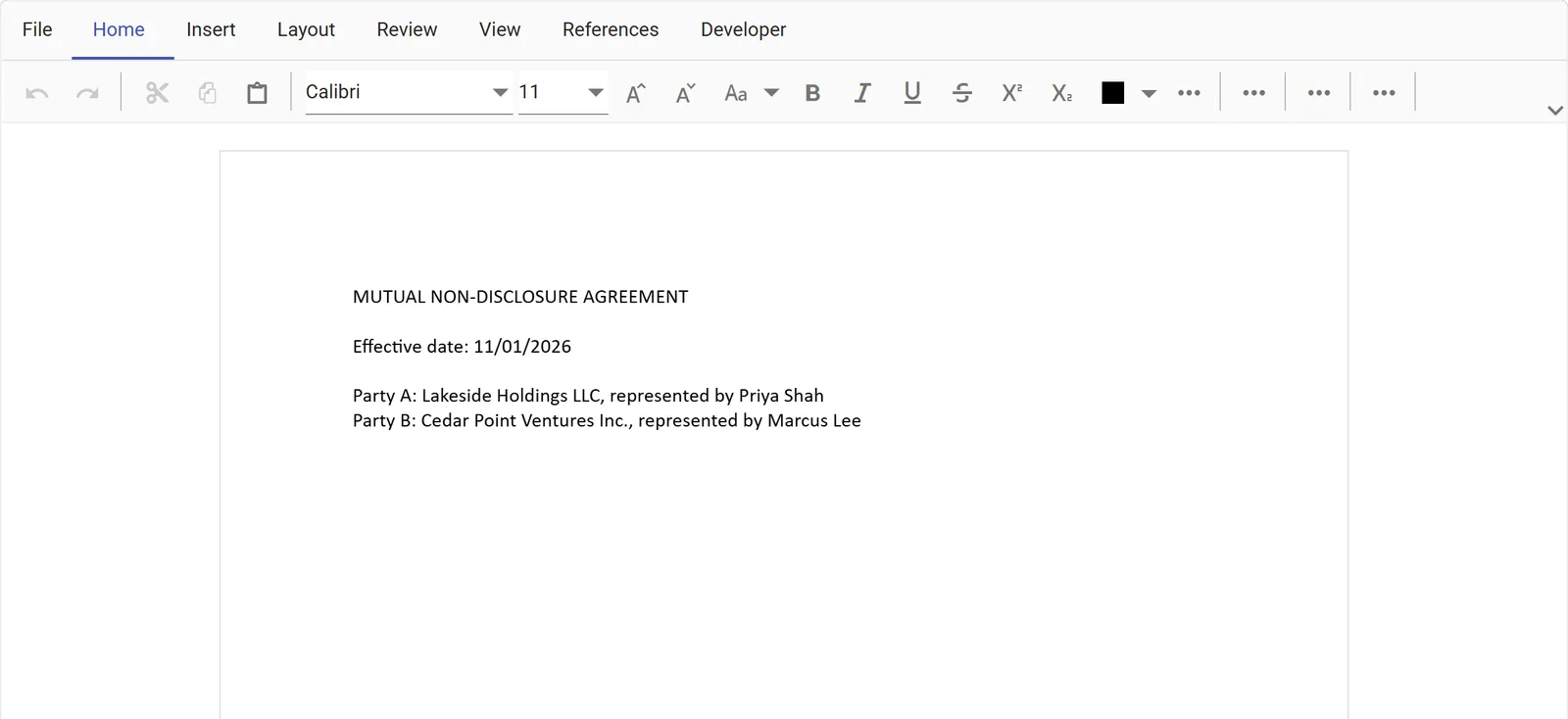
The finished document has both parties' details:
Troubleshooting and FAQ
Some placeholders are still showing in the generated document
A placeholder stays as it is when no answer filled it, for example because the question was optional and left blank, or the question was deleted from the form. Open the document and fill in the gap with Edit Document.
I fixed a typo in the template. Do I need to redo the documents?
Documents already generated stay as they were. Generate again from the same submission to get an updated copy; each one is saved separately.
Two of the combined forms ask the same question. Which answer is used?
The answer from the submission you selected last. To avoid surprises, ask each question on only one of the forms, as in Step 5.
Why can't I select a submission in combine mode?
Only submissions from forms built on the same template can be combined, and at most five at a time. Click Cancel Combine and start again if you picked the wrong first submission.
Can I generate a PDF?
Generated documents are Word files (.docx). Open the download in Word
and choose Save As → PDF if you need one. Once a document is signed
through Formaliq, the signed copy is a PDF.
Next steps
- Send a document for e-signature: get the generated document signed and track it.
- Generated Documents: how generation works and how each document is tracked back to its source.
- Conditional Logic: include sections only when a client's answers call for them.