Automate your client engagement letter, start to finish
Most firms retype the same engagement letter for every new client: the client's name and address, the matter, the scope of work, the fee. This guide sets that letter up once in Formaliq. After that, you send each new client a short form, and their finished letter is generated from their answers, with nothing retyped and nothing copied between documents.
The examples follow a fictional firm, Harbor & Lane Law, taking on a new client, but the same steps work for any letter you send again and again: retainer agreements, fee letters, or welcome letters.
What you'll build
A letter template with blanks for the details that change, a form your client fills out, and the finished letter generated from their answers:
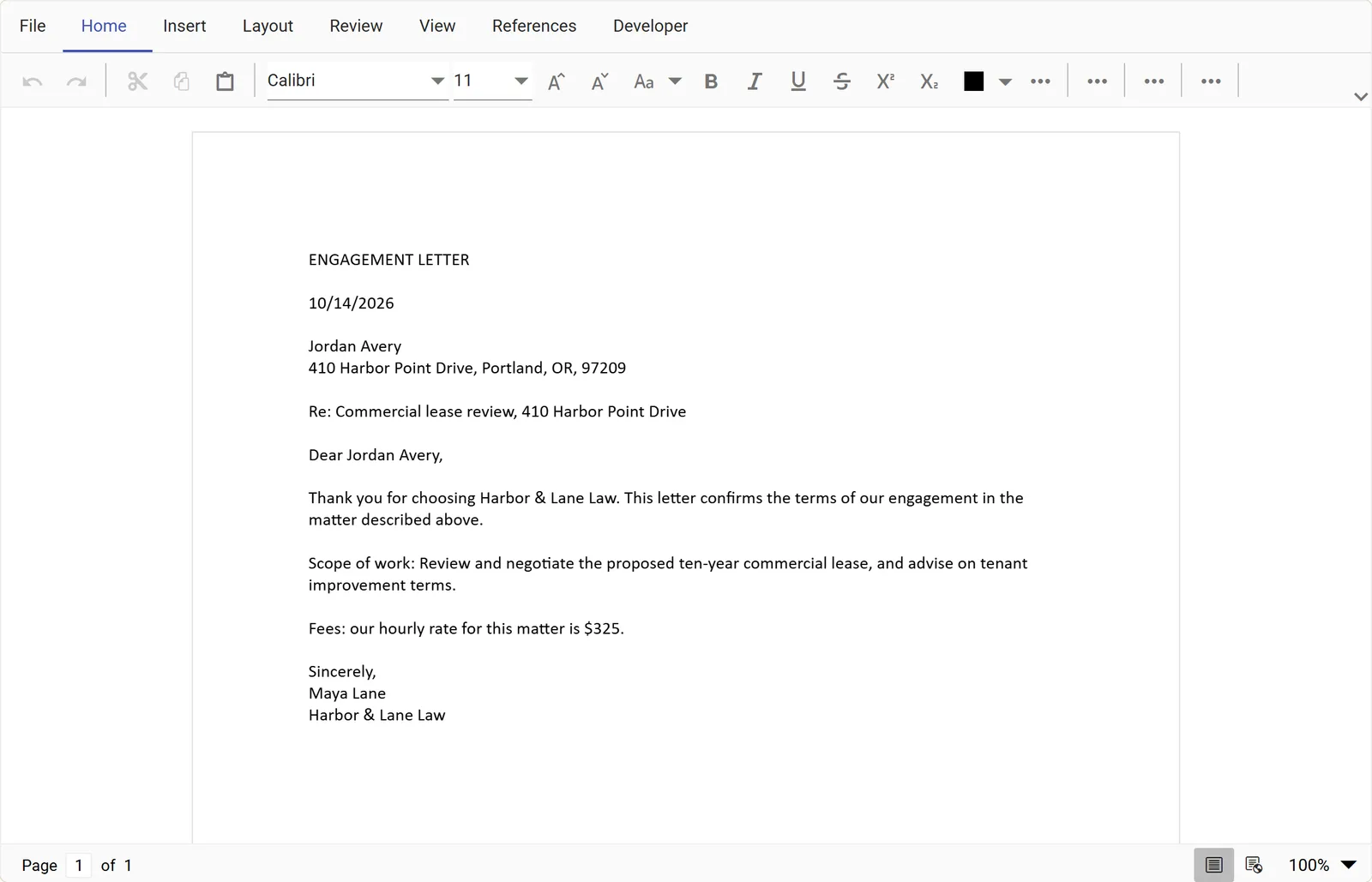
Time needed: about 15 minutes the first time. After that, each new client takes about a minute of your time.
Before you start
- A Formaliq account. If you don't have one, the free 14-day trial is enough for this guide.
- The wording of your current engagement letter, so you can paste it in.
- Your client doesn't need a Formaliq account. They just open a link.
Step 1: Create a workspace for the client
A workspace keeps everything for one client or matter together: the letter template, the form, your client's answers, and the generated letter.
Go to Workspaces, click New Workspace, enter the client's name and a short description, and click Create Workspace.
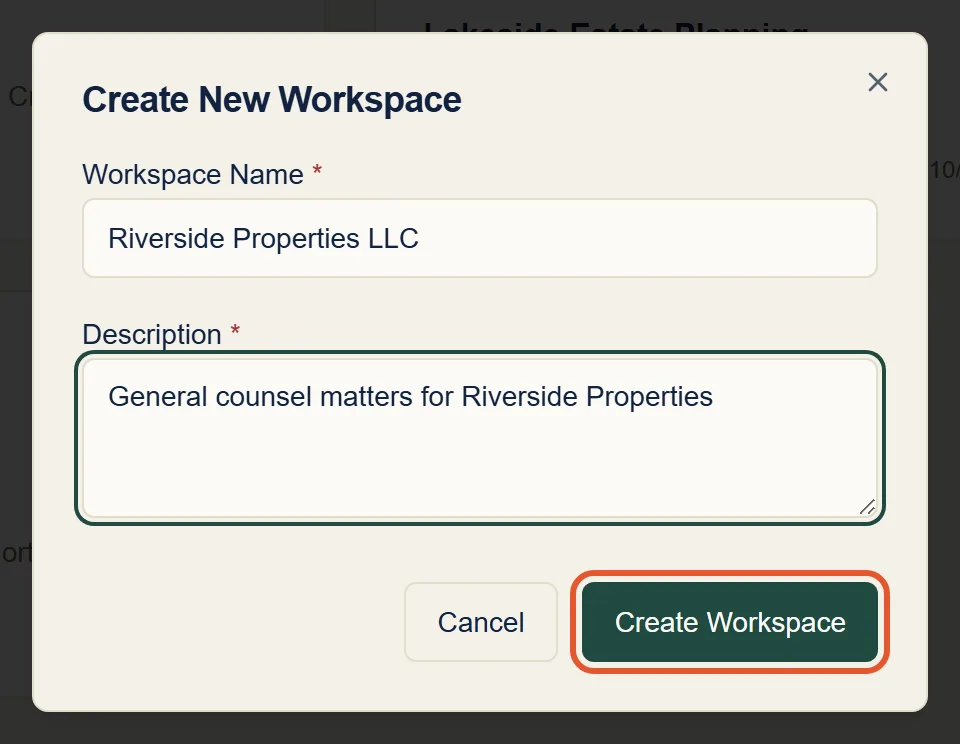
Then click the new workspace to open it.
Step 2: Create the letter template
Inside the workspace, click New Template. Name it something you'll recognize later, like Engagement Letter, add a short description, and click Create Template.
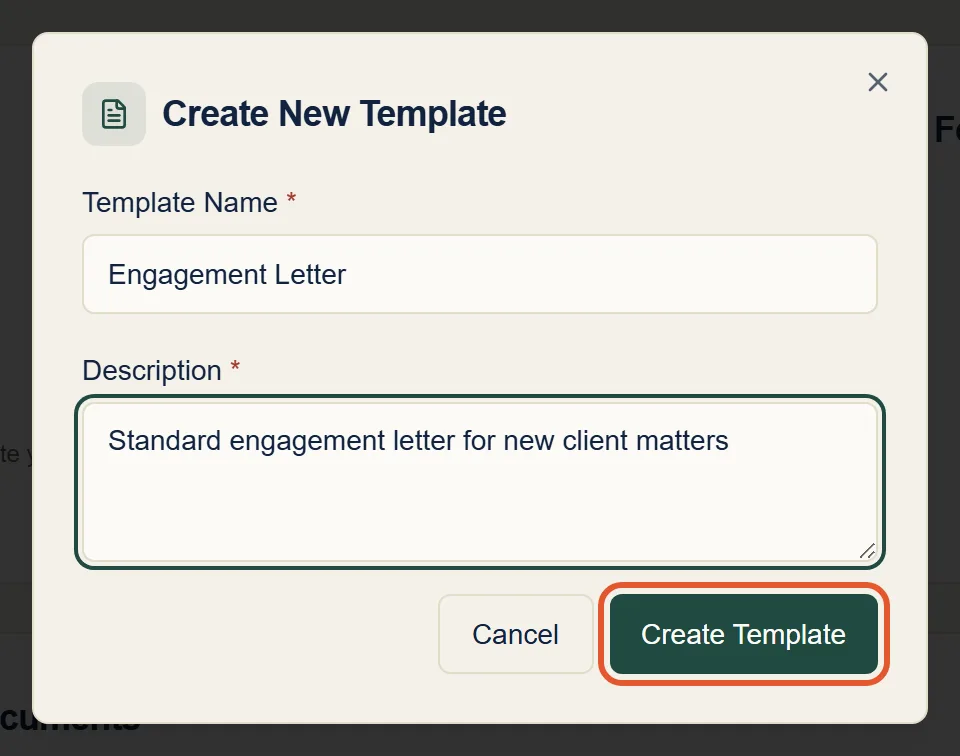
The template editor opens. It works much like Microsoft Word.
Step 3: Add your letter and placeholders for the details that change
First, get your letter into the editor. There are two ways:
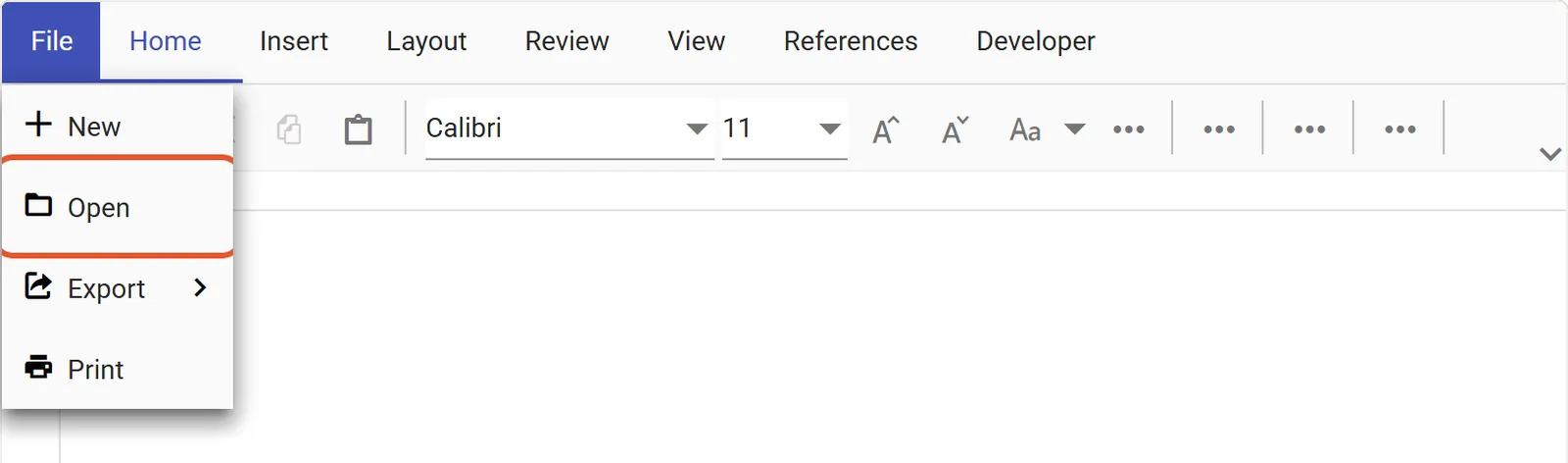
- Open your existing Word document. Click File → Open in the editor
and choose your
.docxfile. Its text, headings, and formatting come in as they are. - Paste or type it. Copy the text from wherever your letter lives now and paste it into the editor, or type it from scratch.
Then, wherever a detail changes from client to client, replace it with a
placeholder: a name in double curly braces, such as {{name_client}}.
Here's the letter used in this guide:
ENGAGEMENT LETTER

{{date_letter}}

{{name_client}}
{{address_client}}

Re: {{text_matter}}

Dear {{name_client}},

Thank you for choosing Harbor & Lane Law. This letter confirms the terms of
our engagement in the matter described above.

Scope of work: {{textarea_scope}}

Fees: our hourly rate for this matter is ${{number_hourly_rate}}.

Sincerely,
Maya Lane
Harbor & Lane Law
The first part of each placeholder's name tells Formaliq what kind of question to ask your client:
| Placeholder starts with | Your client gets |
|---|---|
date_ | A date picker |
name_ | First name and last name boxes |
address_ | Street, city, state, and zip code boxes |
text_ | A one-line text box |
textarea_ | A larger box for a few sentences |
number_ | A number box |
There are more options, including dropdowns, checkboxes, and yes/no switches. See Placeholder Prefixes for the full list.
As you type, each placeholder appears under Used Fields on the left.
That's how you know Formaliq has picked it up. Using the same placeholder
twice, like {{name_client}} above, asks the question once and fills in
both spots.
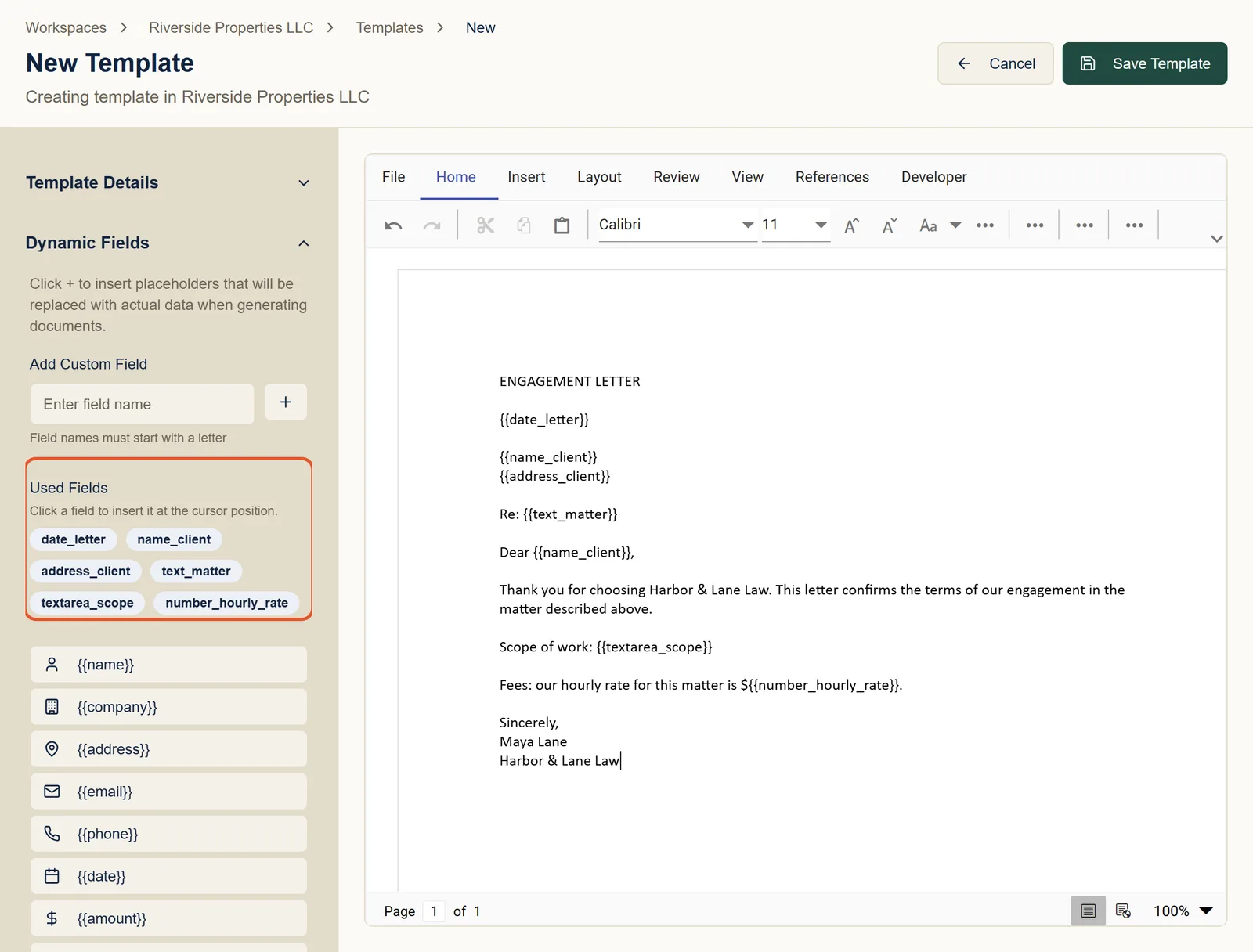
When the letter looks right, click Save Template.
Step 4: Turn the template into a form
On the template's page, click Create Form from Template. Formaliq reads your placeholders and builds a form question for each one, previewed on the right.
Give the form a name your client will see at the top of it, such as New Client Intake, add a short description, and click Create Form.
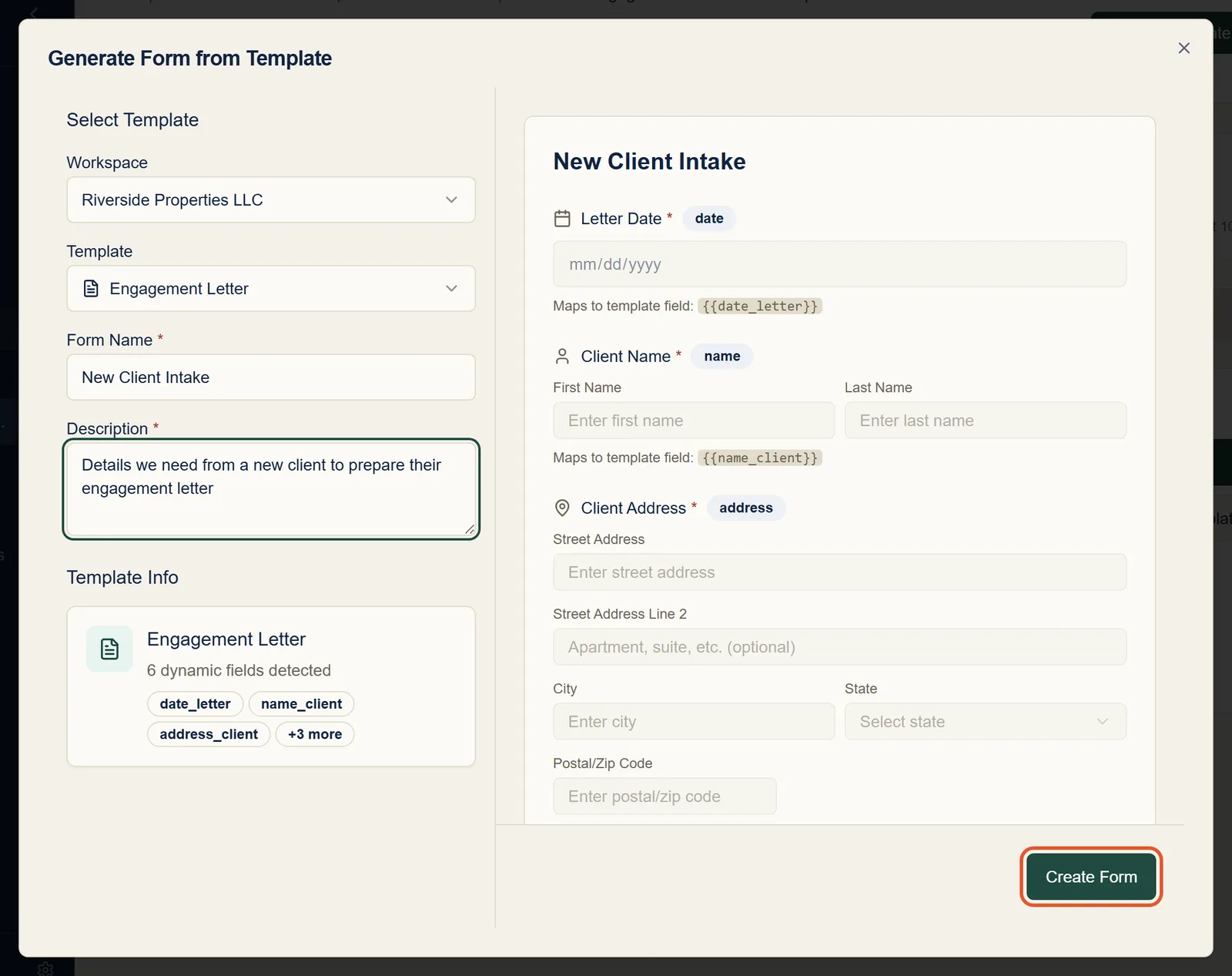
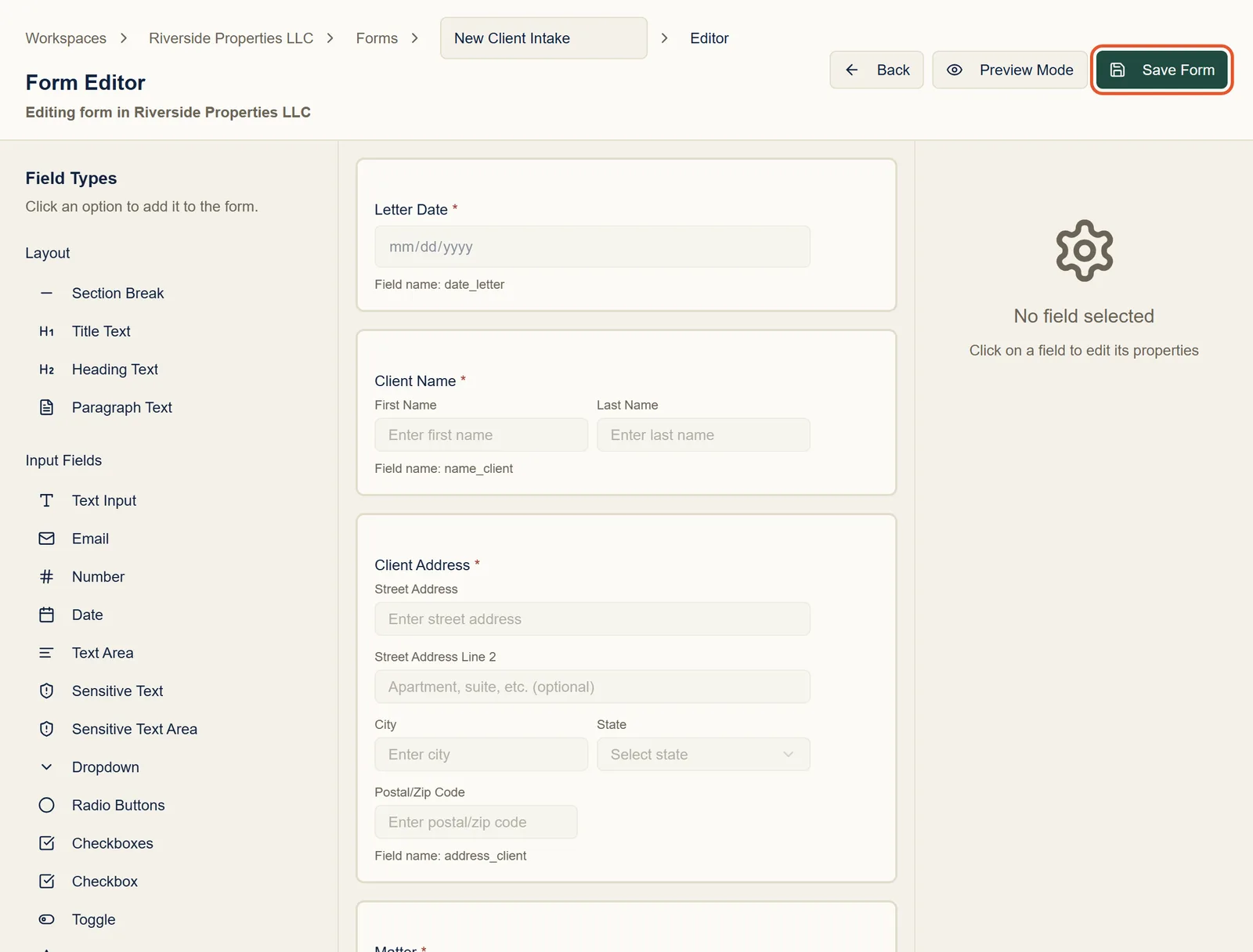
The form opens in the form editor, where you can reword questions, mark them optional, or add help text. When you're happy with it, click Save Form.
Step 5: Send the form to your client
On the form's page, click Send Invitations.
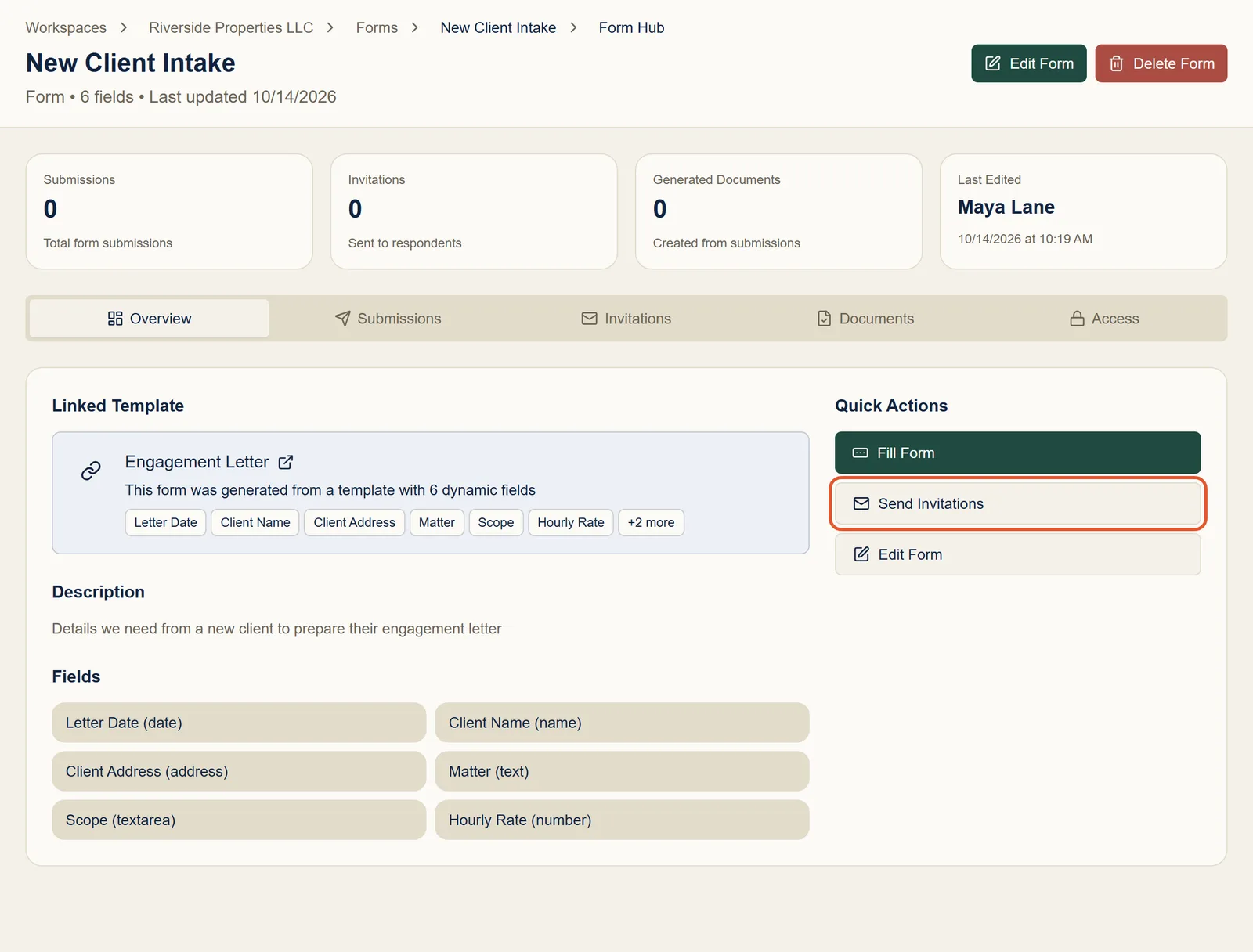
Choose Individual Invitation, enter your client's email address and name, and optionally add a personal message. Then click Send Invitation.
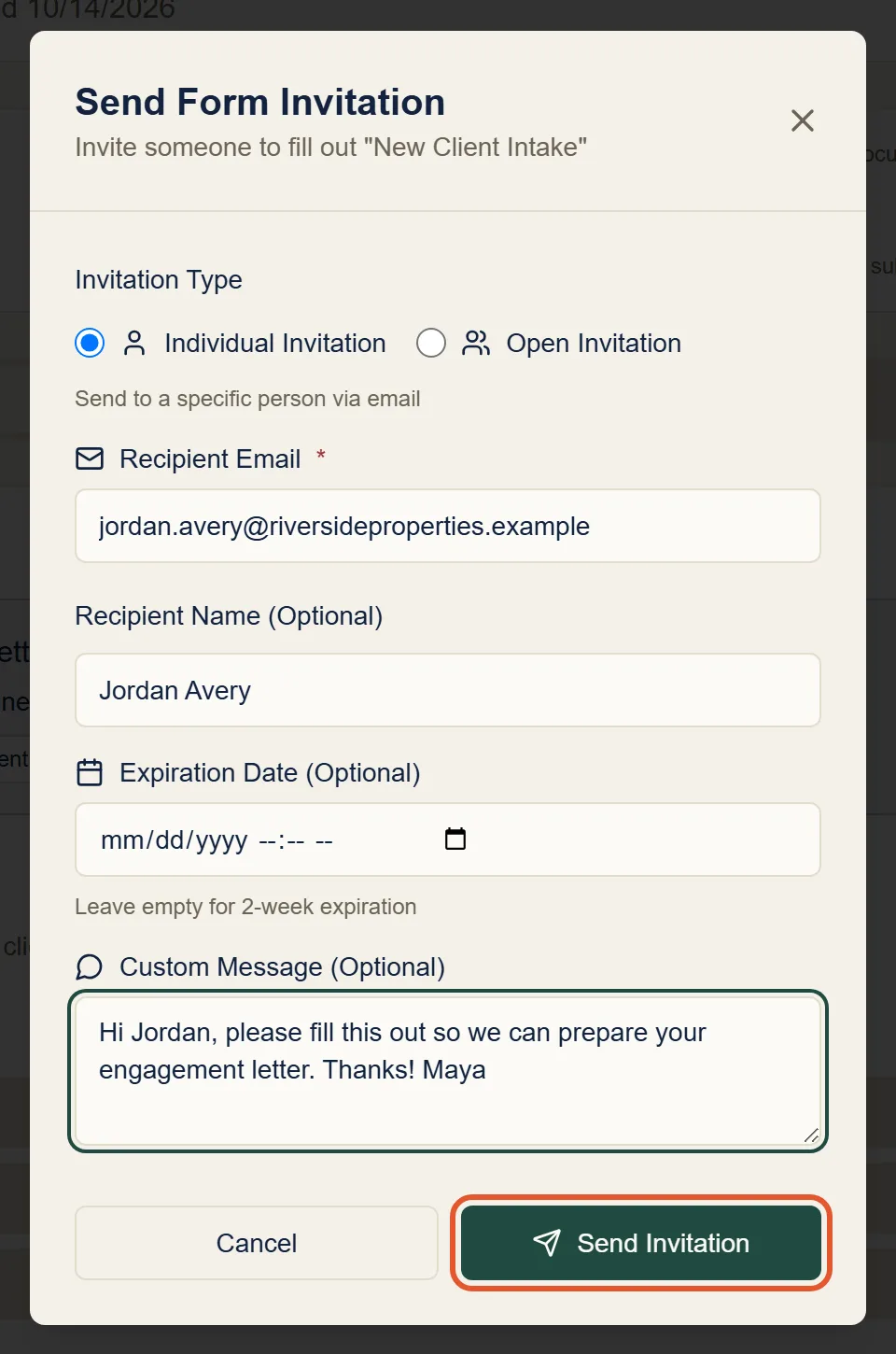
Your client gets an email with a link to the form. The link expires after two weeks unless you choose a different expiration date. You can see whether they've opened it or submitted it on the form's Invitations tab.
Choose Open Invitation instead and click Create Link. You get a link you can paste into your own email, text message, or client portal.
Step 6: Your client fills out the form
Your client opens the link in any browser, with no account or download needed. They see your form, your personal message, and the questions built from your template:
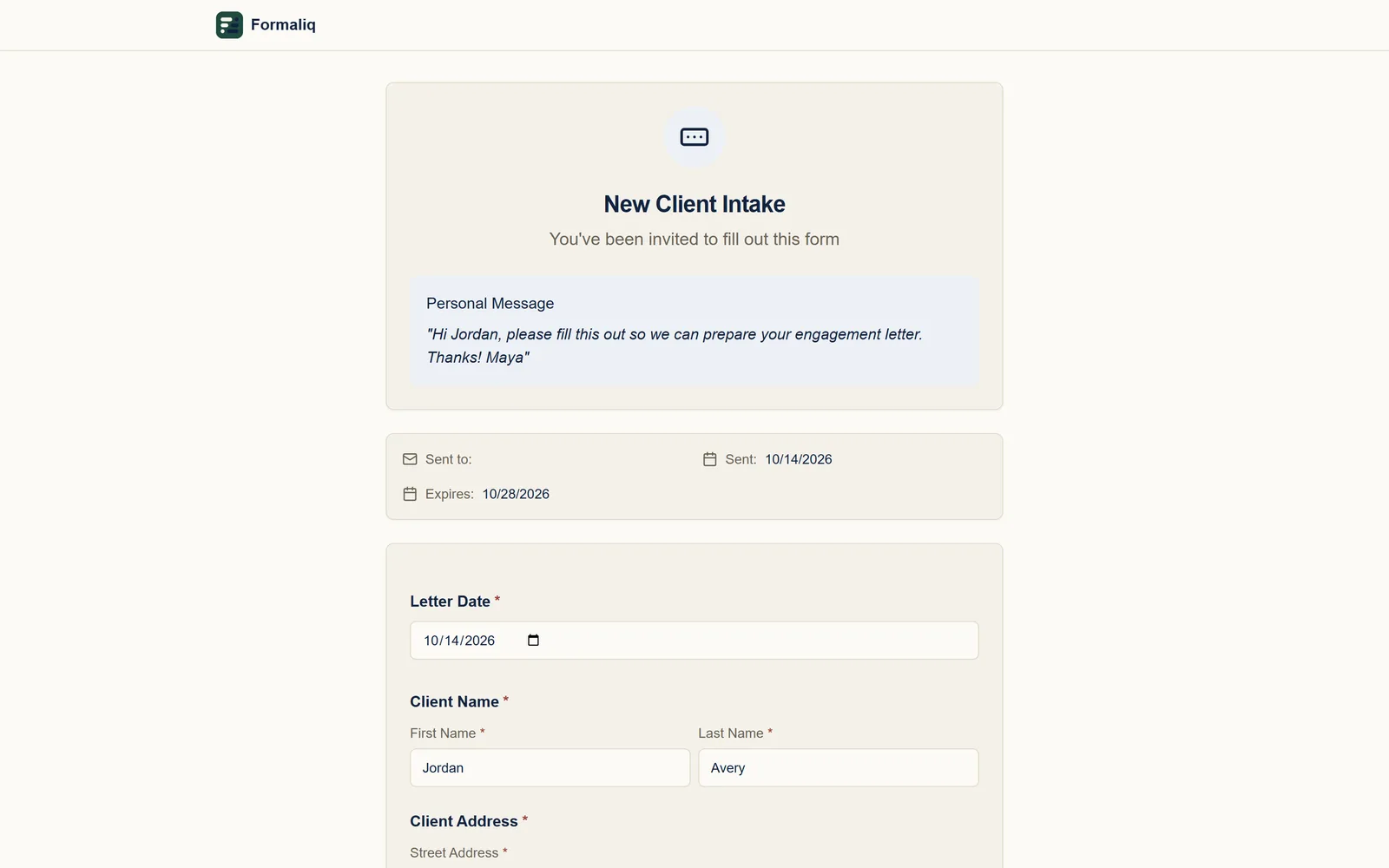
When they click Submit Form, their answers are saved as a submission in the client's workspace.
Step 7: Generate the letter from their answers
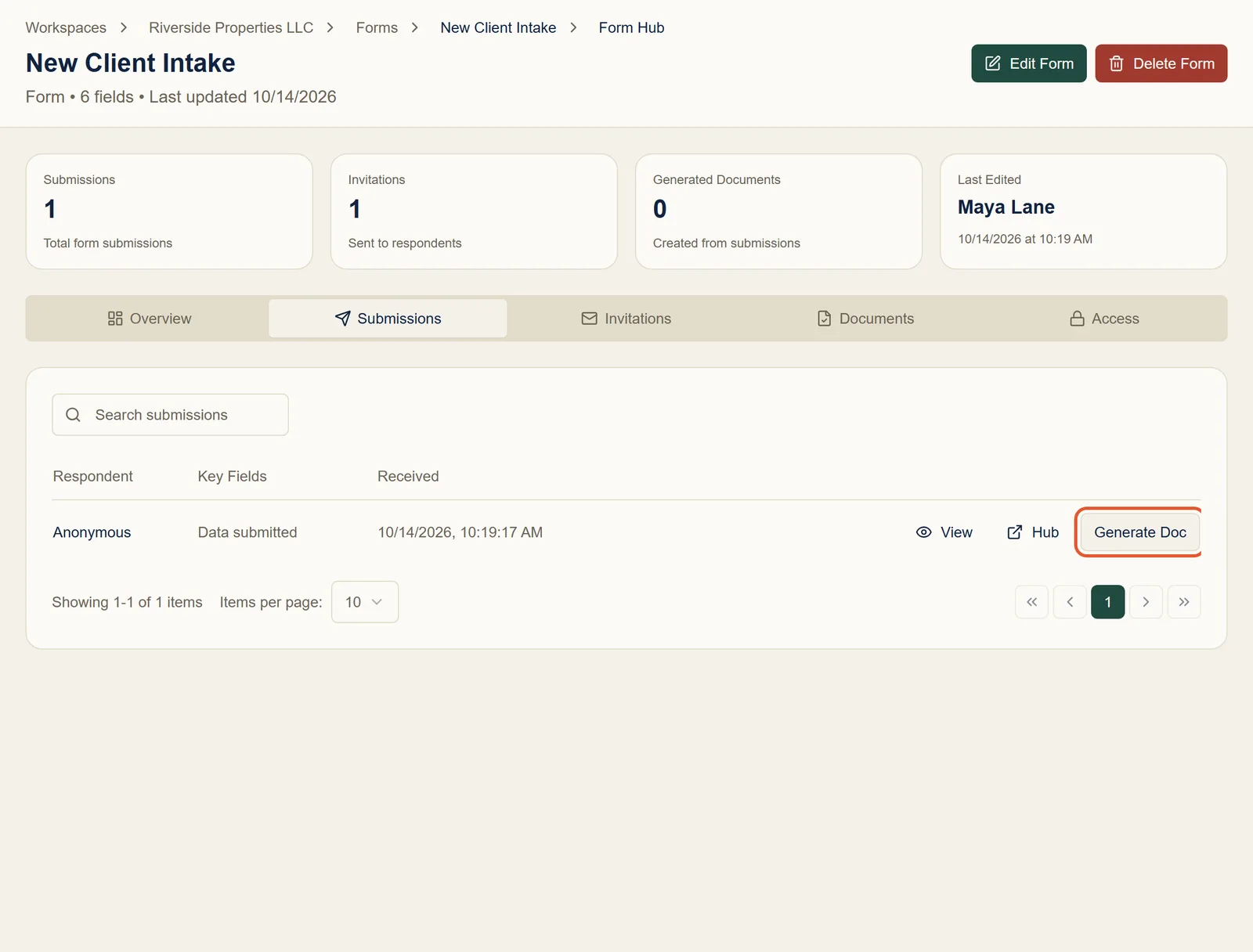
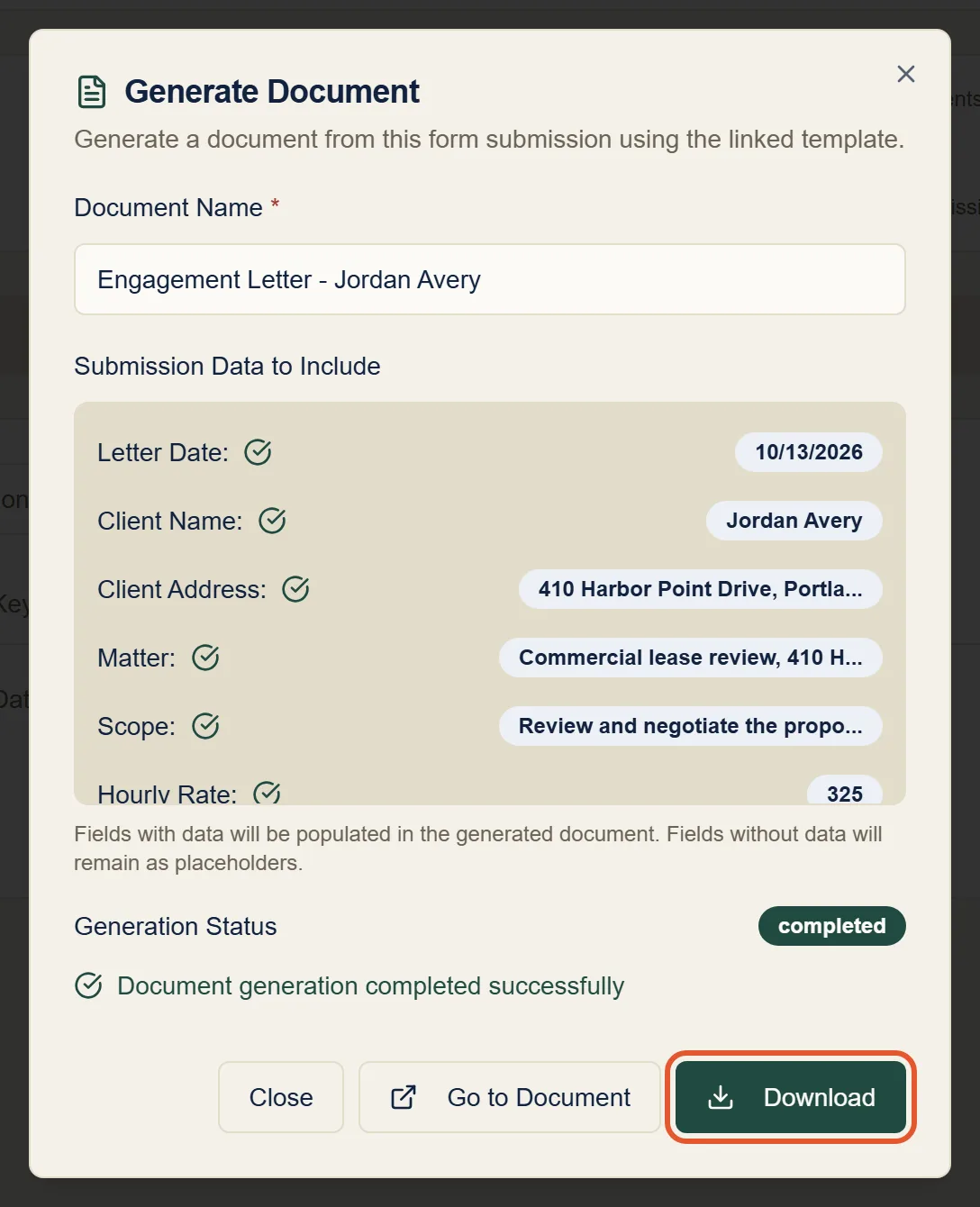
Open the form's Submissions tab. You'll see your client's response; click Generate Doc next to it.
Name the document, for example Engagement Letter - Jordan Avery, and check the client's answers listed under Submission Data to Include. Then click Generate.
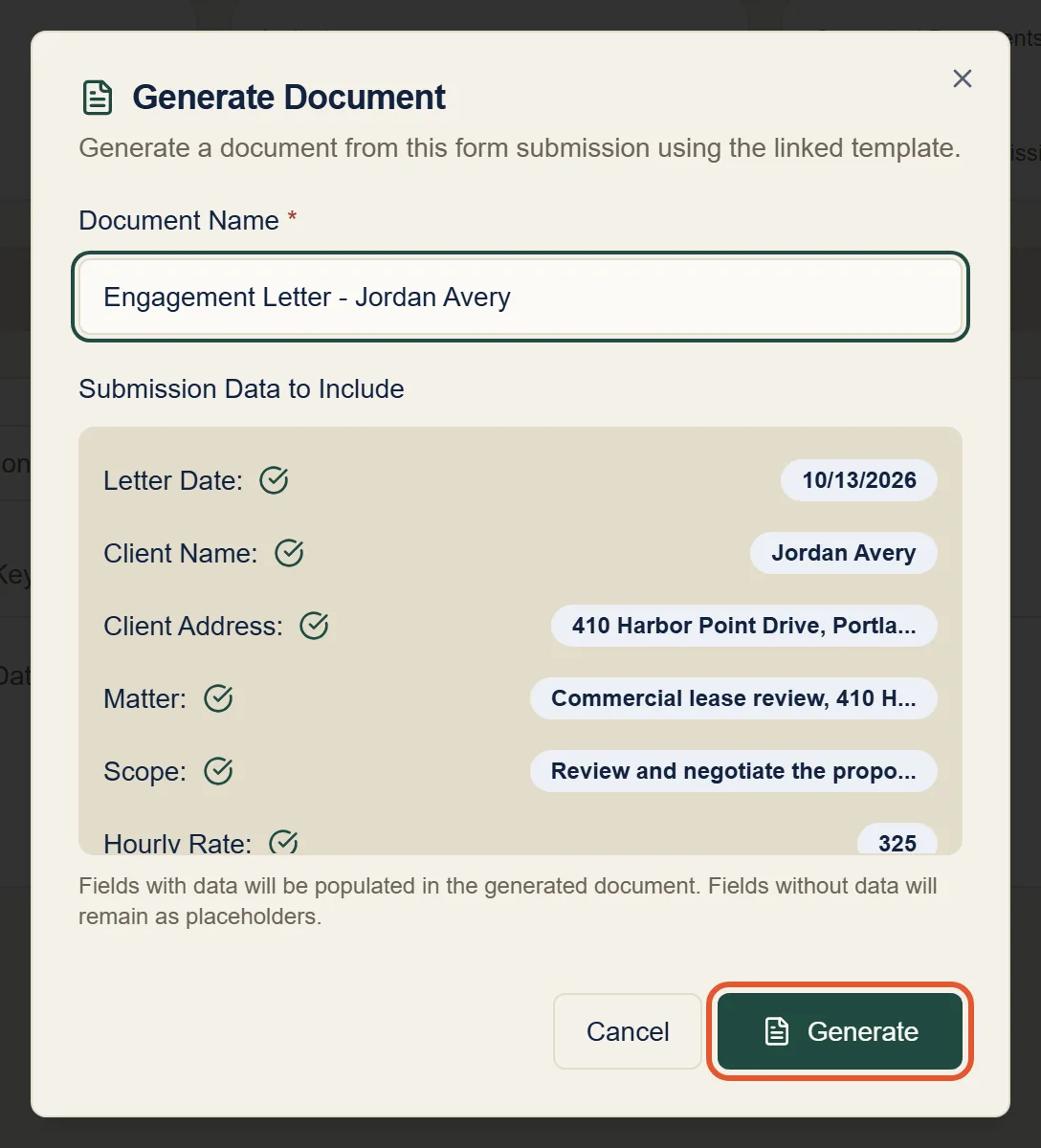
Formaliq fills every placeholder with your client's answers. It takes a few seconds.
Step 8: Review, download, or send it for signature
Click Go to Document to open the finished letter's page. From here you can Download it as a Word document, make last-minute changes with Edit Document, or send it straight to your client with Send for Signature.
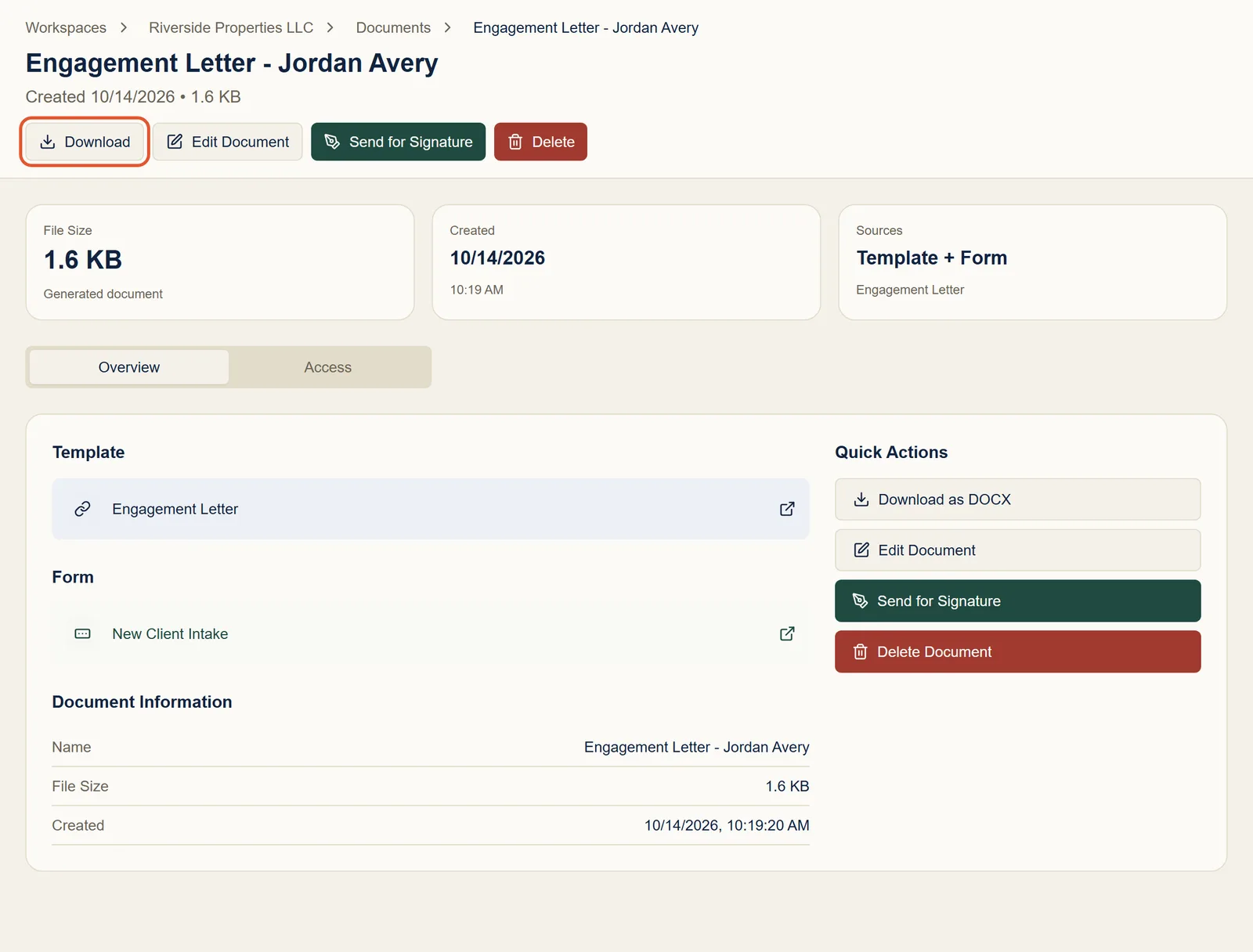
That's it. For your next client, send the same form again (Step 5). Each response becomes its own submission, and each letter is generated in seconds.
Troubleshooting and FAQ
Will opening my Word document keep its formatting?
Yes. Headings, fonts, tables, and spacing come in as they are, so the generated letters look like your original. You only replace the details that change with placeholders (Step 3).
A placeholder didn't become the right kind of question
Check that it starts with one of the prefixes from Step 3, followed by an
underscore, such as date_signed rather than signeddate. Then save the
template and create the form again. See
Placeholder Prefixes.
Does my client need a Formaliq account?
No. They only need the link from the invitation email.
My client says the link has expired
Invitations expire after two weeks by default. Send a new invitation from the form's page, and set a later expiration date if they need more time.
Can the letter change depending on the client's answers?
Yes, for example a retainer paragraph that only appears when a retainer applies. See Conditional Logic.
If I fix a typo in the template, does it change letters I've already generated?
No. A generated letter stays exactly as it was created. Generate it again from the same submission to get an updated copy.
Next steps
- Send a document for signature: get the finished letter signed electronically, with a full audit trail.
- Conditional Logic: make sections of the letter appear only when they apply.
- Use Cases: more template examples, including invoices and multi-version contracts.